Pixel Perfect Text in Unity

In this article we will take a look at the solution of the pixel perfect font problem in Unity as I implemented it for my currently developed game SODHARA. Unity, given that it is a modern tool geared towards high res output, is not particularly friendly to the retro-inspired style of the yesteryear – the script presented in this article is one of the ways in which this hurdle can be overcome.

1 Overview

In SODHARA I use TextMeshPro text components for everything text related. I use pixel perfect bitmap fonts in which all the glyphs’ sizes should be integer values, and the resolution is low enough so that each “pixel” (or, rather, a constituent square) of each glyph should correspond to a single pixel on screen.

The truth is however that these fonts are not perfect, and the problem is mostly with padding. This means that for the left (or right) aligned text the first glyph will probably be set properly but then the next one will note be an integer value pixels away, which will accumulate after a while and present rather unpleasant artifacts. Much bigger problem lies in centered text, since usually not even the first glyph is properly set in such a case.

This can be somewhat circumvented by carefully placing the text objects on screen so that, even though their position lies between pixels, the text itself is rendered properly. This only works if the resolution of the game is 1:1, i.e. if one pixel of the graphics corresponds to one pixel on screen. However, this approach yields diminishing results as one introduces features such as localization, template strings, and any process which tampers with the strings in runtime, thus making it impossible to place the objects properly in advance.

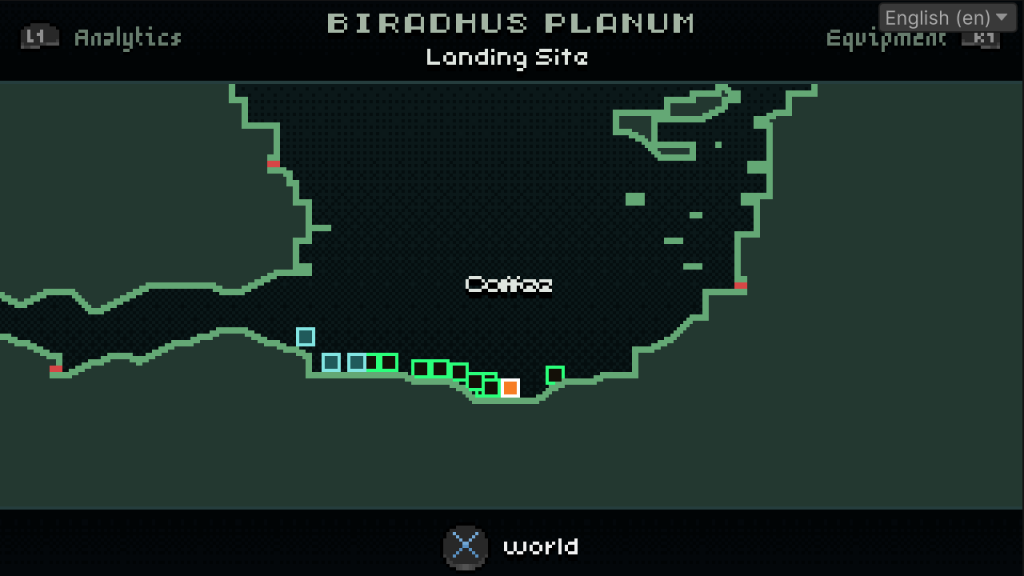
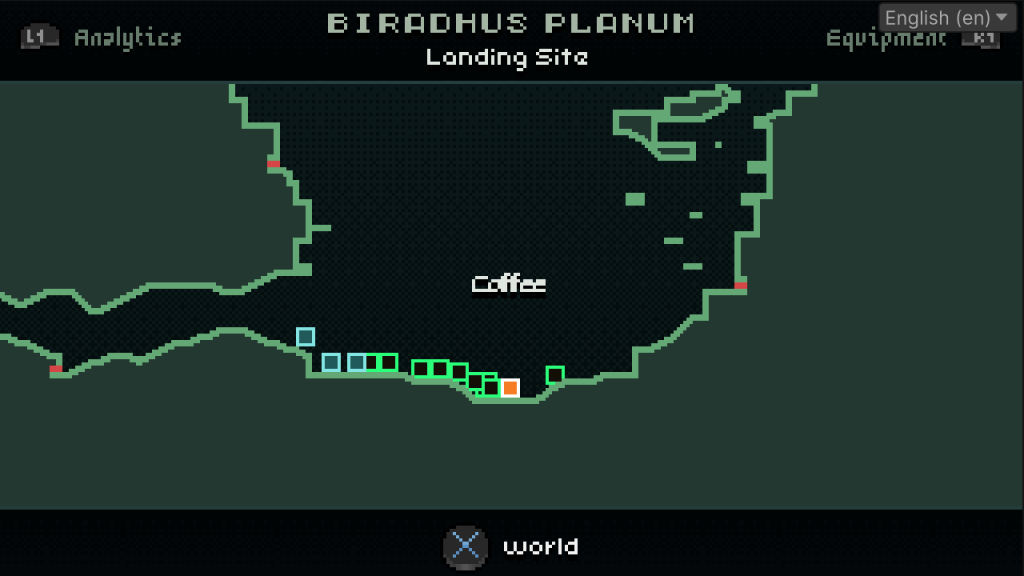
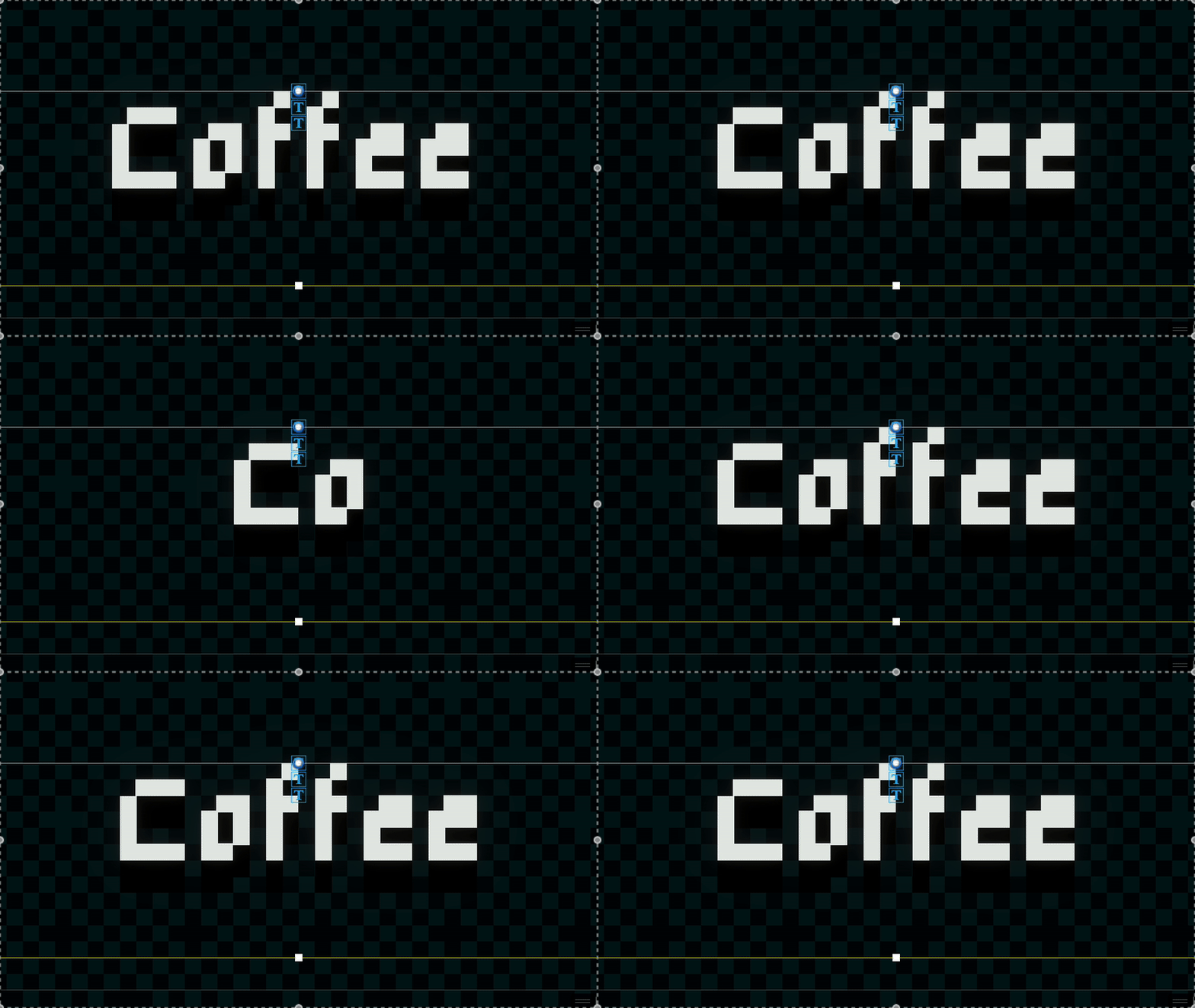
To get my point across, please consider images 1-4, whereas the odd ones are taken from the editor and the even ones are in-game screenshots.

Image 1. Centered text (font Uni 05_x by Craig Kroeger) in Editor.
Image 2. Centered text (font Uni 05_x) in game.
Image 3. Centered text (font 5MikroPix by Winter Design Studios) in Editor.
Image 4. Centered text (font 5MikroPix) in game.

Whenever a glyph pixel founds itself in a sub-pixel position it will be “rounded” to the closest integer value, which, in case of being around the center of the pixel, means it will appear in two places at once, yielding “chunky” and irregular glyphs (both in case of letters and spaces) all over the text. What’s worse, in case of dynamic text, the glyphs will change width and shape based on their (changing) position, which I find truly horrendous.

The solutions I found online usually boil down to either moving the entire text object to such a sub-pixel position that will “trick” the rounding process and make the text snap into place, or using custom scripts that snap the text to grid. As I stated previously, the first solution is problematic when one has to deal with varying text, i.e. when localization is involved, and it is near impossible to achieve with centered text. The second solution seemed more plausible, but none of the users that mentioned it shared the scripts they use. Thus, I decided to write my own.

2 Pixel Perfect Text Enforcer

Retro-styled games usually use a small number fonts – SODHARA in particular uses three, so the first step was to describe all the fonts used in order to have relevant info on each of them in one place. The class I used is shown in listing 1.

public class CharSpacingInfo
{
    public bool IsFontMonospaced => _fixedCharWidth > 0;
    public int SuggestedWidthFor(float width) => 
        IsFontMonospaced ? _fixedCharWidth : (int)(width / _pixelSize);

    public int _pixelSize;
    public int _fontSize;
    public int _fixedCharWidth;
    public int _interCharSpaceWidth;
    public int _whitespaceWidth;

    public CharSpacingInfo(
        int pixelSize, int fontSize, int fixedCharWidth, 
        int interCharSpaceWidth, int whitespaceWidth)
    {
        _pixelSize = pixelSize;
        _fontSize = fontSize;
        _fixedCharWidth = fixedCharWidth;
        _interCharSpaceWidth = interCharSpaceWidth;
        _whitespaceWidth = whitespaceWidth;
    }
}

Listing 1. The CharSpacingInfo class keeps tracks of the various font measurements.

The fields of the CharSpacingInfo class represent the following font qualities:

  • pixelSize: size of the “font pixel”, or the “constituent square” as I dubbed it previously,
  • fontSize: size of the font as set in the TextMeshPro script within the inspector,
  • fixedCharWidth: width of the glyphs in monospaced fonts (set to -1 in case the font is not monospaced),
  • interCharSpaceWidth: width of the space between individual glyphs, and finally
  • whitespaceWidth: width of the whitespace, or spacebar character.

The data given for each of the three fonts are used to force the glyphs to snap to pixel grid by means of wrapping the chars and spaces with <mspace={size}px>...</mspace> tags, and also followed up by <space={size}px> tag when a non-whitespace character is followed by another non-whitespace char. The size are taken from the CharSpacingInfo instances, namely the _fixedCharWidth and  _interCharSpaceWidth fields.

The actual wrapping is done by the methods shown in listing 2.

    public static string CharWithTags(char c, int size) => 
        $"<mspace={size}px>{c}</mspace>";

    public static string WrapStringInTags
        (TMP_FontAsset fontAsset, string text)
    {
        if (string.IsNullOrEmpty(text))
            return text;

        var wrappedText = "";

        for (var i = 0; i < text.Length; i++)
            wrappedText += WrapCharInTags(
                fontAsset,
                text[i],
                i < text.Length - 1 ? text[i + 1] : null);

        return wrappedText;
    }

    private static string WrapCharInTags
        (TMP_FontAsset fontAsset, char curr, char? next)
    {
        var result = CharWithTags(
            curr, 
            GetCharPixelWidth(
                fontAsset, 
                CHAR_SPACING_INFO[fontAsset.name], 
                curr));

        if (curr != ' ' && next.HasValue && next.Value != ' ')
            result += 
                $"<space={CHAR_SPACING_INFO[fontAsset.name]._interCharSpaceWidth}px>";

        return result;
    }

    private static int GetCharPixelWidth
        (TMP_FontAsset fontAsset, CharSpacingInfo spacingInfo, char curr)
    {
        if (curr == ' ')
            return spacingInfo._whitespaceWidth;

        if (fontAsset.characterLookupTable.TryGetValue
            (curr, out TMP_Character tmpCharacter))
            return spacingInfo.SuggestedWidthFor
                (tmpCharacter.glyph.metrics.width);

        Debug.LogWarning($"Glyph for character '{curr}' not found in the font asset. Using 0 width.");
        return 0;
    }

Listing 2. The WrapStringInTags and WrapCharInTags methods of the PixelPerfectTextEnforcerStatic class.

The WrapStringInTags method handles the string processing obviously. Each character (alongside the following one) is fed into the WrapCharInTags method which then wraps the input character into the required mspace tags and adds the space tag if necessary. Since the character glyphs themselves are pixel perfect, in this way we are only forcing the proper spacing between the characters and the proper whitespace character width as well.

There is however another case one should account for, and that is the situation in which the string of pixel perfect text is supposed to be centered, but is of odd length in pixels – such a string can never snap perfectly to the pixel grid since all of its pixels will smack in the middle of the grid fields the entire time. For that purpose the methods shown in listing 3 are employed to adjust the TextMeshPro object position in such a way that pixel perfect text is assured even in such a case.

    private static int GetStringPixelWidth
        (TMP_FontAsset fontAsset, string text)
    {
        var totalPixelLength = 0;

        for (int i = 0; i < text.Length; i++)
        {
            totalPixelLength += GetCharPixelWidth(
                fontAsset, 
                CHAR_SPACING_INFO[fontAsset.name], 
                text[i]);

            totalPixelLength += 
                i < text.Length - 1 && text[i] != ' ' && text[i + 1] != ' ' ? 
                    CHAR_SPACING_INFO[fontAsset.name]._interCharSpaceWidth : 
                    0;
        }

        if (fontAsset.name == "HalfEighties") // special adjustment for the "HalfEighties" font.
            totalPixelLength += 1;

        return totalPixelLength;
    }

    public static float GetPosXAdjustment
        (TMP_Text tmpText, string currText)
    {
        if (tmpText.horizontalAlignment != HorizontalAlignmentOptions.Center)
            throw new System.ArgumentException
                ("Adjusting horizontal position for non-centered text is pointless. Aborting...");

        var lengthInPixels = GetStringPixelWidth(tmpText.font, currText);
        var pos = tmpText.GetComponent<RectTransform>().anchoredPosition;

        var isTextPosXInt = pos.x % 1 == 0;

        var shouldNudge = isTextPosXInt && lengthInPixels % 2 != 0; // text has not yet been nudged but it should be
        var shouldRevert = !isTextPosXInt && lengthInPixels % 2 == 0; // text has been nudged but should now be pulled back

        return shouldNudge ? -.5f : (shouldRevert ? +.5f : 0f);
    }

Listing 3. The GetStringPixelWidth and GetPosXAdjustment methods of the PixelPerfectTextEnforcerStatic class.

The result is responsive pixel perfect text that is suitable for all alignment settings, and for both static and dynamic text alike. How it looks like in the end can be viewed in image 5.

Image 5. Pixel perfect text enforcer.

There is a short interval which the text needs to snap into place. This float value is exposed by the script and can be adjusted in the inspector. One more important thing to note is that the TextMeshPro object’s RectTransform component has to be set to integer coordinates for the PixelPerfectTextEnforcer script to work properly.

The entire script may be viewed on GitHub and freely used. It is tested and works well with all kinds of text – static, dynamic, localized or not.

3 Conclusion

Nasty artifacts can really spoil the illusion of playing a game released a few decades ago, which breaks the immersion and ruins the style which the developer worked so hard to achieve. This simple script handles the TextMeshPro font problems neatly and effectively, and lets developers concentrate on things more important then nudging the text objects by sub-pixel values around.

Developing a “Slot-Based” Save System in Unity

In this article we will take a look at how to implement a “slot-based” save system in a Unity project in the way I did it for my currently developed game SODHARA. A “slot-based” system has been around for a long time and is employed in many games, with Super Metroid perhaps being the first that comes to mind.

1 Overview

The basic idea is to have a (finite or infinite, in the case of this example it is three) number of slots of which the player selects one at the start of game, after which the game is saved automatically into that particular slot, usually upon quitting the current game. This is the variant covered by this article, although a few variations will be briefly touched upon at the very end.

In order to make this work, the following components are needed:

  1. a save game system, which will take care of the actual file writing and reading,
  2. a slot selection menu, which displays the current state of available slots and allows any of them to be selected or cleared, and finally
  3. an in-game pause menu, which will trigger the save game method upon quitting to main menu.

Let us inspect each of the moving parts individually.

2 Save System Controller

The save system controller is a component needed by both the UI system as well as the game proper. For that reason, I prefer to create an object which will persist (note that the term persistence here is used in a context different to the one related to databases) through scene transitions, and attach the save system controller script to that object, which precisely how I did it in SODHARA. In addition, it is logical to make that object a singleton, which yields the Awake() method for the SaveSystemCtrl script as given in Listing 1.

public static SaveSystemCtrl instance;

private void Awake()
{
    if (instance == null)
    {
        instance = this;
        DontDestroyOnLoad(gameObject);
    }
    else
    {
        Destroy(gameObject);
    }

    activeSlotIdx = -1;
}

Listing 1. The Awake() method of the SaveSystemCtrl persistent singleton class.

In order to justify its name the SaveSystemCtrl script the methods with which to save, load and clear game information. In addition, it needs the actual save data and for that I recommend writing a dedicated data class. The reason is purely organisational, as it allows one to keep track of what is being saved much more easily and efficiently. An example of one such class is given in Listing 2.

using UnityEngine;

[System.Serializable]
public class SaveData
{
    public int slotIdx;
    public bool isSlotEmpty;

    [Header("PLAYER STATE")]
    public int playerHealth;
    public int amountOfCrystals;

    [Header("PLAYER POSITION")]
    public int sceneIdx;
    public string sceneName;
    public Vector3 playerPosition;

    public SaveData()
    {
        slotIdx = 0;
        isSlotEmpty = true;

        playerHealth = 0;
        amountOfCrystals = 0;

        sceneIdx = 0;
        sceneName = "";
        playerPosition = Vector3.zero;
    }
}

Listing 2. The SaveData class keeps track of player’s health, amount of crystals and position.

The class is as standard as they come, the only part of which that requires a comment being the [System.Serializable] attribute which enables the display of the data class in Unity’s inspector. Constructor in this case is a matter of convenience and is not in any way mandatory.

Back to SaveSystemCtrl class – the first method we will work on is CreateSaveData() which has all the introduction it needs in its name alone and is shown in Listing 3.

private SaveData CreateSaveData()
{
    SaveData data = new SaveData();

    data.slotIdx = activeSlotIdx;
    data.isSlotEmpty = false;

    data.playerHealth = PlayerHealthController.instance.currentHealth;
    data.amountOfCrystals = DestructableTracker.instance.amountOfCrystals;

    data.sceneIdx = SceneManager.GetActiveScene().buildIndex;
    data.sceneName = SceneManager.GetActiveScene().name;
    data.playerPosition = PlayerController.instance.transform.position;

    return data;
}

Listing 3. The SaveSystemCtrl.CreateSaveData() method.

What this method does is access the relevant player information and use it to fill up an instance of the SaveData class and then pass it onward for other methods of the SaveSystemCtrl class to use. In fact, this data is only used by a single method, that one being Save() as given in the Listing 4.

public void Save()
{
    if (PlayerController.instance == null)
    {
        Debug.LogWarning("Player not found");
        return;
    }

    string dataPath = $"{Application.persistentDataPath}/slot{activeSlotIdx}.save";

    Debug.Log($"Saving to ${dataPath}...");

    var serializer = new XmlSerializer(typeof(SaveData));
    var stream = new FileStream(dataPath, FileMode.Create);
    serializer.Serialize(stream, CreateSaveData());
    stream.Close();
}

Listing 4. The SaveSystemCtrl.Save() method.

The method first checks whether the player exists at all. Next, the save file path is built using the Application.persistentDataPath value which contains the path to a persistent data directory. The data we are saving will then be serialised into an XML format and then fed into a file stream in order to write it into a file, and for that reason we are instancing the XmlSerializer and FileStream classes. After saving the data the stream is closed.

In order to reveal the actual folder to which the Application.persistantDataPath value points to, one can use the command given in the Listing 5.

EditorUtility.RevealInFinder(Application.persistentDataPath);

Listing 5. Revealing the Application.persistantDataPath folder in Finder or Explorer.

We will now take a look at the ReadSaveData(int slotIdx) method displayed in the Listing 6.

public SaveData ReadSaveData(int slotIdx)
{
    SaveData data = new SaveData();

    string dataPath = $"{Application.persistentDataPath}/slot{slotIdx}.save";

    if (!File.Exists(dataPath))
        return data;

    var serializer = new XmlSerializer(typeof(SaveData));
    var stream = new FileStream(dataPath, FileMode.Open);
    data = serializer.Deserialize(stream) as SaveData;

    data.isSlotEmpty = false;

    stream.Close();

    return data;
}

Listing 6. The SaveSystemCtrl.ReadSaveData() method.

There isn’t much to comment on in this case, as it is basically the same procedure as saving the game except for the “reverse” direction. Once the save file is read, the data is returned to the caller of the method.

Next up is the BackupAndClearSaveData(int slotIdx) method. As the save files in my project are fairly small, I decided to not simply clear them on deletion, but back them up in a dedicated folder. The code to do so is given in the Listing 7 and is fairly simple.

public void BackupAndClearSaveData(int slotIdx)
{
    string dataPath = $"{Application.persistentDataPath}/slot{slotIdx}.save";

    if (!File.Exists(dataPath))
    {
        Debug.LogWarning("File not found");
        return;
    }

    string targetDir = $"{Application.persistentDataPath}/deleted";

    if (!System.IO.Directory.Exists(targetDir))
        System.IO.Directory.CreateDirectory(targetDir);

    string targetDataPath = $"{Application.persistentDataPath}/deleted/{DateTime.Now.ToString("yyyyMMdd_HHmmss")} slot{slotIdx}.save";

    System.IO.File.Move(dataPath, targetDataPath);
}

Listing 7. The SaveSystemCtrl.BackupAndClearSaveData(int slotIdx) method.

After checking whether the save file exists we create the path to the backup directory, check if it exists and if not create it, and finally move the “deleted” save to the backup dir.

Finally, let’s have look at the ApplySavedDataAndClear() method as given in Listing 8.

public void ApplySavedDataAndClear()
{
    StartCoroutine(ApplySavedDataAndClearCoroutine());
}

private IEnumerator ApplySavedDataAndClearCoroutine()
{
    yield return new WaitForSeconds(.1f);

    PlayerHealthController.instance.currentHealth = dataToLoad.playerHealth;
    UIController.instance.UpdateHealth(PlayerHealthController.instance.currentHealth, PlayerHealthController.instance.maxHealth);
    DestructableTracker.instance.amountOfCrystals = dataToLoad.amountOfCrystals;

    PlayerController.instance.transform.position = dataToLoad.playerPosition;
    Camera.main.transform.position = new Vector3(
        dataToLoad.playerPosition.x, dataToLoad.playerPosition.y, Camera.main.transform.position.z);

    shouldLoadData = false;
    dataToLoad = null;

    GlobalSettingsCtrl.instance.fadeScreenCtrl.StartFadeFromBlack();
}

Listing 8. The SaveSystemCtrl.ApplySavedDataAndClear() method.

Just as ReadSaveData() is the opposite of Save(), so is ApplySavedDataAndClear() basically the opposite of CreateSaveData(). The dataToLoad attribute of the SaveSystemCtrl class is set in advance by one of the other scripts which handles save slot selection in the appropriate menu, which is done in order to persist saved data between scenes by saving it with a persistent object. Other than that there is nothing out of the ordinary, as the player’s health, crystal amount, position, as well as camera position are read from the saved data and applied. The saved game slot is then cleared and indicator boolean set to false. The final line activates a fade to black which is of course purely aesthetical and will not be further elaborated upon here.

3 Slot Selection Menu

Next up is the slot selection menu. The design is of course up to you, but as an idea you may inspect Image 1 and see how I did it for SODHARA.

Image 1. A slot selection menu design idea.

There are obviously two types of buttons in this menu, those being the Back button and the slot buttons, which also come in two states, i.e. empty (default) and populated. To the right of each slot button is the button used for clearing the slot and I consider these auxiliary elements part of the slot button in the populated state.

Much as it was the case with save data, it would be handy to have a data class to represent the stuff that this slot selection button should display. One such class is shown in Listing 9 and it is, unsurprisingly, quite similar to the SaveData class we inspected earlier.

public class SlotSelectionButton : MonoBehaviour
{
    [Header("FIELDS")]
    public GameObject dataEmpty;
    public GameObject dataPopulated;

    [Header("POPULATED DATA")]
    public TMP_Text captionHealth;
    public TMP_Text captionCrystals;
    public TMP_Text captionArea;
}

Listing 9. The SlotSelectionButton class contains the information displayed by a populated slot button.

As this class is not to be used in the Unity inspector there is no need to serialise it by adding the [System.Serializable] attribute as we did with SaveData earlier.

Listing 10 shows the class fields we are using in the SlotSelectionMenu class. The buttons are self-explanatory, the mainMenu points to the “upper-level” menu in relation to the slot selection one, and the saveData contain the data read from the three currently available save slots. 

[Header("BUTTONS")]
public GameObject btnSlot0;
public GameObject btnSlot1;
public GameObject btnSlot2;
public GameObject btnBack;

[Header("MENUS")]
public GameObject menuMain;

[Header("OTHER")]
public SaveData[] saveData = new SaveData[3];

Listing 10. The SlotSelectionMenu class fields.

The slot selection menu is stored as a game object which is interchangeably activated and deactivated as the player flips between it and the main menu. Therefore, the slot buttons become relevant only when this menu is active and they should be updated each time it is activated. Now, this presents some questions in regards to optimisation, as it is not really necessary to update the slots each time the menu is activated since it is only possible to save while in-game, but for simplicity purposes let’s do it this way, especially as it does not significantly hinder the performance. In order to track the activation of the object we need Unity’s OnEnable function as shown in Listing 11.

private void OnEnable()
{
    PopulateSlotData();
}

private void PopulateSlotData()
{
    for (int i = 0; i < 3; i++)
        PopulateSlotDataByIdx(i);
}

private void PopulateSlotDataByIdx(int slotIdx)
{
    SlotSelectionButton currSlot = (slotIdx == 0 ? btnSlot0 : slotIdx == 1 ? btnSlot1 : btnSlot2).GetComponent<SlotSelectionButton>();

    SaveData data = SaveSystemCtrl.instance.ReadSaveData(slotIdx);
    saveData[slotIdx] = data;

    currSlot.dataEmpty.SetActive(data.isSlotEmpty);
    currSlot.dataPopulated.SetActive(!data.isSlotEmpty);

    if (data.isSlotEmpty) return;

    currSlot.captionHealth.text = $"HP {data.playerHealth}";
    currSlot.captionCrystals.text = $"CRYS {data.amountOfCrystals}";
    currSlot.captionArea.text = $"Area: {data.sceneName}";
}

Listing 11. Populating the save game slots upon activating the menu within SlotSelectionMenu class.

We’ll concentrate on the PopulateSlotDataByIdx(int slotIdx) method as the other two are self-explanatory. The relevant button is selected based on the slotIdx argument – the buttons could’ve been saved as an array in which case this would be slightly simpler, but I opted for this route in this particular case. Next, the saved data is read and stored in the saveData array, after which the button is set up for display. Button’s default state is empty so that one requires no setup. Based on the state of the isSlotEmpty field of the data variable the empty and populated state are activated or deactivated, and then the check to see if there is any data to be loaded is made – if not the method returns, otherwise the relevant info is fed into the TMP_Text elements of the button.

Shown in Listing 12 is the ClearSlot() method which does exactly what it says it does. Again, it is not necessary to reload all the slots after clearing one of them, but in this case it’s a simple and cheap solution so I opted for that route once again.

public void ClearSlot(int slotIdx)
{
    SaveSystemCtrl.instance.BackupAndClearSaveData(slotIdx);
    PopulateSlotDataByIdx(slotIdx);
}

Listing 12. The SlotSelectionMenu.ClearSlot() method.

The final element of the SlotSelectionMenu script is the StartGame(int slotIdx) method as shown in the Listing 13.

public void StartGame(int slotIdx)
{
    GlobalSettingsCtrl.instance.fadeScreenCtrl.StartFadeToBlack();
    StartCoroutine(StartGameCoroutine(GlobalSettingsCtrl.instance.fadeScreenCtrl.fadeSpeed, slotIdx));
}

private IEnumerator StartGameCoroutine(float timeToWait, int slotIdx)
{
    yield return new WaitForSeconds(timeToWait);

    SaveSystemCtrl.instance.activeSlotIdx = slotIdx;

    SaveSystemCtrl.instance.shouldLoadData = !saveData[slotIdx].isSlotEmpty;
    SaveSystemCtrl.instance.dataToLoad = saveData[slotIdx].isSlotEmpty ? null : saveData[slotIdx];

    SceneManager.LoadScene(saveData[slotIdx].isSlotEmpty ? menuMain.GetComponent<MainMenu>().newGameScene : saveData[slotIdx].sceneName);
}

Listing 13. The SlotSelectionMenu.StartGame() method.

The reason I use the coroutine is this case is solely in order to make my crossfade thingy, i.e. the fadeScreenCtrl component, work properly. What is happening basically is that I initiate a fade to black and only once that is complete will I call the StartGameCoroutine(), so that all the nasty transitions are happening behind the black curtain.

The activeSlotIdx of the SaveSystemCtrl class is the currently active slot, i.e. the one to which the game will be saved upon quitting the game via pause menu – obviously, it must persist through the scene transitions and is therefore kept in a persistent object. Fields shouldLoadData and dataToLoad are used for feeding the player the saved data after loading the required scene, which is done in the last line of the method, which loads the first scene in the game if the slot is empty, otherwise it loads the scene contained in the save file.

The last relevant snippet of code for loading the game can be seen in Listing 14.

private void OnSceneLoaded(Scene scene, LoadSceneMode mode)
{
    if (SaveSystemCtrl.instance.shouldLoadData)
        SaveSystemCtrl.instance.ApplySavedDataAndClear();
    else
        GlobalSettingsCtrl.instance.fadeScreenCtrl.StartFadeFromBlack();
}

Listing 14. Applying the save data in case the data is present, otherwise activating the crossfade.

Unity’s OnSceneLoaded() function is activated once the current scene is completely loaded. At that point we are sure that all the necessary assets are in their place and so we can apply the saved data such as physical position of the player safely in case there is anything to apply. If not, the player is left in its default position and the fade from black is initiated.

4 In-Game Pause Menu

In SODHARA the game is saved when the player quits the game and returns to main menu. There isn’t much to discuss here actually, as the only two relevant lines are given in the Listing 15.

SaveSystemCtrl.instance.Save();
SaveSystemCtrl.instance.activeSlotIdx = -1;

Listing 15. Saving the game upon quitting to main menu.

Setting the activeSlotIdx to -1 is simply a precaution measure and is probably not necessary but, as always with coding, it’s better to be safe than sorry.

5 Conclusion

Once all the pieces are in place your project should now have a fully functional save system in place. Shown in the Image 2 is how it looks like in SODHARA v0.4.3.
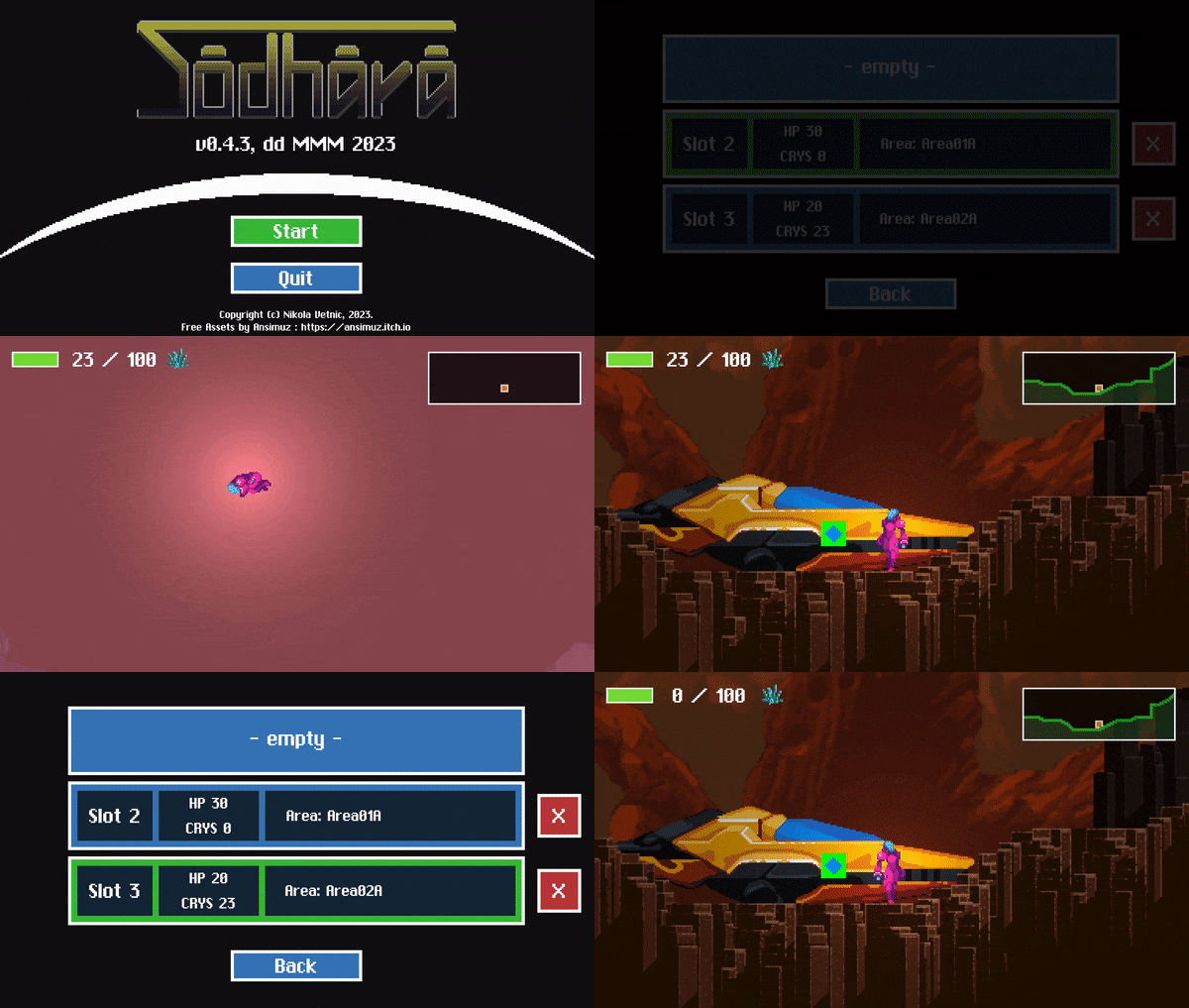
Image 2. Slot-based save system as implemented in SODHARA.

The good thing about this system is that it is fairly simple and robust, yet it allows for variations and can thus be adapted to suit different needs. What immediately comes to mind is greater number of save slots, infinite number of slots even, manual as opposed to automatic save, and even saving to an arbitrary slot which in turn makes it a classical manual save system.

For any questions and comments feel free to contact me via the contact form of the website.

SAP Internal Tables

Unlike database tables which are used for long term data storage, the internal tables are temporary tables created and used during the program execution, being deleted prior to the program being terminated. They are used for storing the dynamic data that it sets from a (subset of a) fixed structure in the main/working memory in ABAP.

In effect, internal tables act as arrays (or even better lists – as their size is actually not fixed) in ABAP and are the most complex data objects in ABAP environment. They are most often used for storing and formatting data from a database table within a program.

Internal tables are characterised by the following properties:

  • table type determines the access type that specifies how ABAP accesses the individual table rows
  • row type determines the column that is declared with any ABAP data type
  • uniqueness of the key specifies the key as unique or non-unique
  • key components specify the criteria based on which the table rows are identified

They are most often used as snapshots of database tables (of one or even several tables), or as containers for volatile data.

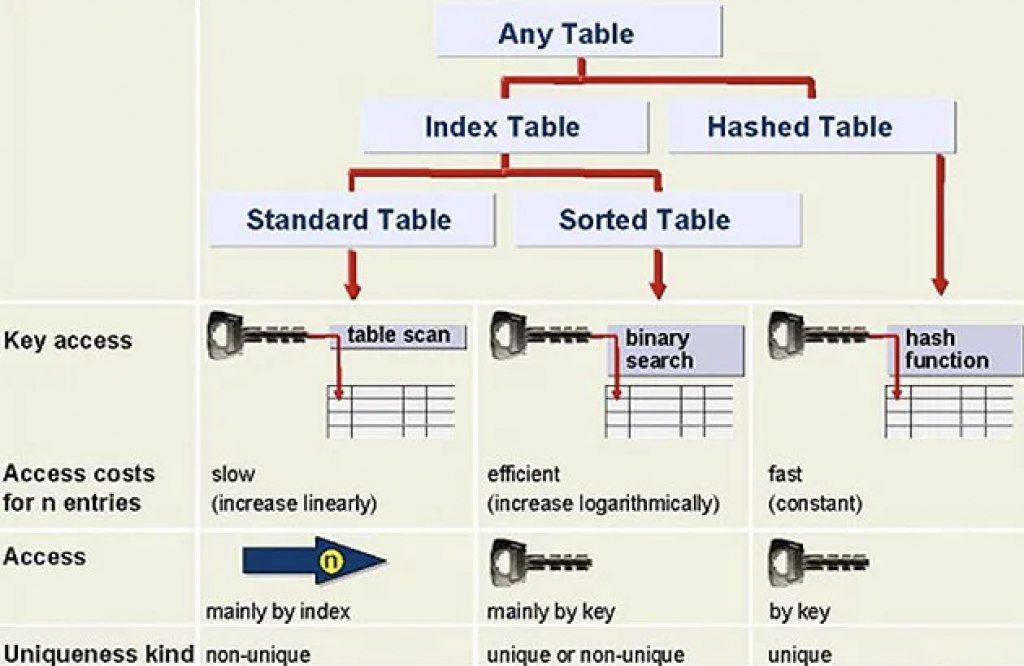
Diagram 1. Internal table types.

Internal Table Types

There are three types of internal tables in SAP ABAP programming:

  • standard internal tables
  • sorted internal tables
  • hashed internal tables
Standard Tables Sorted Tables Hashed Tables
These are default internal tables. These are a special type of internal tables, where data is automatically sorted when the record is inserted. These are used with logical databases.
It is an index table. It is an index table. It is NOT an index table.
Table has a non-unique key. Table has a unique key. Table key is unique and no duplicate entries are allowed.
Access by linear table index or key. Access by linear index or sort key. Direct access only by table key.
Either key or index operation used to read a record. Either key or index operation used to read a record. Key operation used to read the record. Index operation is not allowed.
Either linear search or binary search used to search for a record. Binary search used to search for a record. Hashed algorithm used to search for a record.
Data is not sorted by default and can use sort operation to sort the data. Data already sorted. Data already sorted.
Records can be inserted or appended. Records can be inserted. Used in ABAP with BI projects.
Response time proportional to table size. Response time logarithmically proportional to table size. Constant, fast response time.

Usage

Standard tables are most appropriate for general table operations. Accessed by referring to the table index (which is the quickest access method). Access time for standard table increases linearly with respect to the number of table entries. New rows are appended to the table. Individual rows are accessed by reading the table at a specified index value.

Sorted tables are most appropriate where the table is to be filled in sorted order. Sorted tables are filled using the INSERT statement. Inserted entries are sorted according to a sort sequence defined by the table key. Illegal entries are recognized as soon as you try to insert them into the table. Response time is logarithmically proportional to the number of table entries (since the system always uses a binary search). Sorted tables are particularly useful if you wish to process row by row using a LOOP.

Hashed tables are most appropriate when access to rows is performed by a key. Cannot access hashed tables via the table index. response time remains constant regardless of the number of rows in the table.

SAP Database Tables

There exist three types of SAP database tables: transparent tables, pool tables and cluster tables.

Transparent tables

Transparent tables are of the same structure both in dictionary as well as in the database itself, i.e. they both contain exactly the same fields and data. For that reason, one table in the data dictionary corresponds with exactly one table in the database (i.e. it is a one-to-one relationship).

These tables have at least one primary key, secondary indices can be created and they can be accessed both from within SAP ecosystem (using Open SQL) as well as outside of it using the database’s native SQL. They can be buffered, although that should be avoided in case of heavily updated tables.

Transparent tables are used to store master data, e.g. table of customers or a table of vendors. Examples of such tables are BKPF, VBAK, VBAP, KNA1, COEP, etc.

Pool Tables

Pool tables are logical tables that must be assigned to a table pool upon defining them, meaning that many tables appearing as distinct in ABAP dictionary are actually stored as one physical table within the database. This equates to a many-to-one relationship with the actual database table.

The table in the database has a different name than the tables in the DDIC, it has a different number of fields, and the fields have different names as well. Pooled tables are thus an SAP proprietary construct used to hold a large number (tens to thousands) of very small tables (about 10 to 100 rows each) in one specially constructed physical database table.

Pooled tables are primarily used by SAP to hold customizing data. Examples of SAP standard pooled tables include M_MTVMA, M_MTVMB, M_MTVMC, M_MTVMD, M_MTVME, M_MTVNF, M_MTVNG, M_MTVNH, M_MTVNI, M_MTVNJ, etc.

Cluster Tables

A cluster table is similar to a pooled table in the sense that it holds many tables within, but in this case those are cluster tables. It has a many-to-one relationship with a physical table in the database.

Cluster tables contain continuous text, for example, documentation. Several cluster tables can be combined to form a table cluster. Several logical lines of different tables are combined to form a physical record in this table type. This permits object-by-object storage or object-by-object access. In order to combine tables in clusters, at least parts of the keys must agree. Several cluster tables are stored in one corresponding table on the database.

Like pooled tables, cluster tables are another proprietary SAP construct. They are used to hold data from a few (approximately 2 to 10) very large tables. They would be used when these tables have a part of their primary keys in common, and if the data in these tables are all accessed simultaneously. Table clusters contain fewer tables than table pools and, unlike table pools, the primary key of each table within the table cluster begins with the same field or fields. Rows from the cluster tables are combined into a single row in the table cluster. The rows are combined based on the part of the primary key they have in common. Thus, when a row is read from any one of the tables in the cluster, all related rows in all cluster tables are also retrieved, but only a single I/O is needed.

A cluster is advantageous in the case where data is accessed from multiple tables simultaneously and those tables have at least one of their primary key fields in common. Cluster tables reduce the number of database reads and thereby improve performance.

Examples of cluster tables include BSEC (one-time account data document), BSED (bill of exchange fields document), BSEG (accounting document), BSES (document control data), BSET (tax data document), AUAA (settlement document – receiver), AUAB (settlement document – distribution), etc.

Restrictions on Pooled and Cluster Tables

Pooled and cluster tables are usually used only by SAP and not used by customers, probably because of the proprietary format of these tables within the database and because of technical restrictions placed upon their use within ABAP/4 programs. Restrictions on pooled and cluster tables include:

  • secondary indexes cannot be created
  • you cannot use the ABAP/4 constructs select distinct or group by
  • you cannot use native SQL
  • you cannot specify field names after the order by clause. order by primary key is the only permitted variation

Consuming a REST API with ABAP

A RESTful (or REST for short) API is an architectural style for an application program interface (API) that uses HTTP requests to access and use data. That data can be used to GET, PUT, POST and DELETE data types, which refers to the reading, updating, creating and deleting of operations concerning resources (Gillis). To consume a REST API simply means to use any part of it from an application.

The simplest form of an HTTP request is certainly GET without parameters which is usually used to retrieve all entries offered via particular endpoint. In the following tutorial I will be looking at creating an ABAP program which consumes a REST API and displays all the entries retrieved as a HTML page.

Getting Started

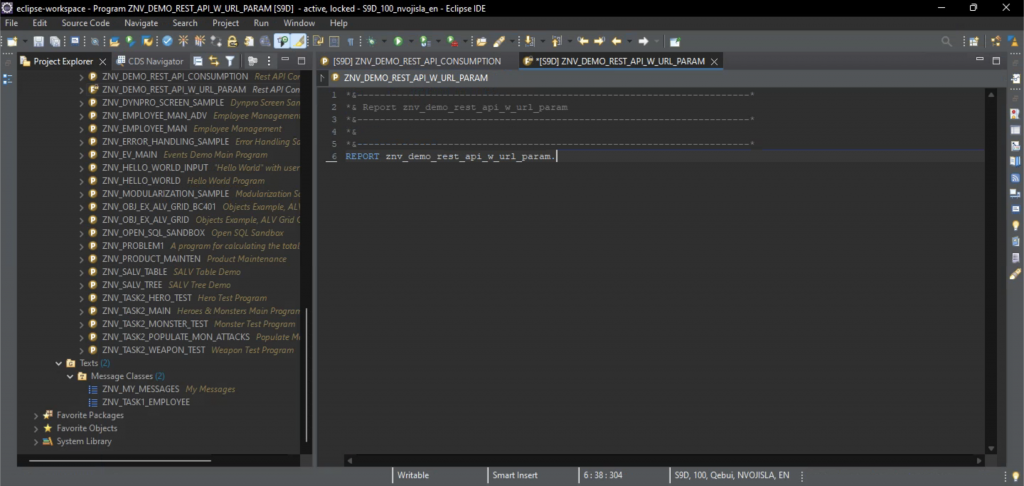
Most of the coding will be done in Eclipse with ADT, but the entire process is as easy to follow when one is using SAP GUI tools as well. Select File / New / Other, and then type in “program” to filter out the results; select ABAP Program to create one. The result can be seen on Screenshot 1.

Screenshot 1 – A new ABAP program.

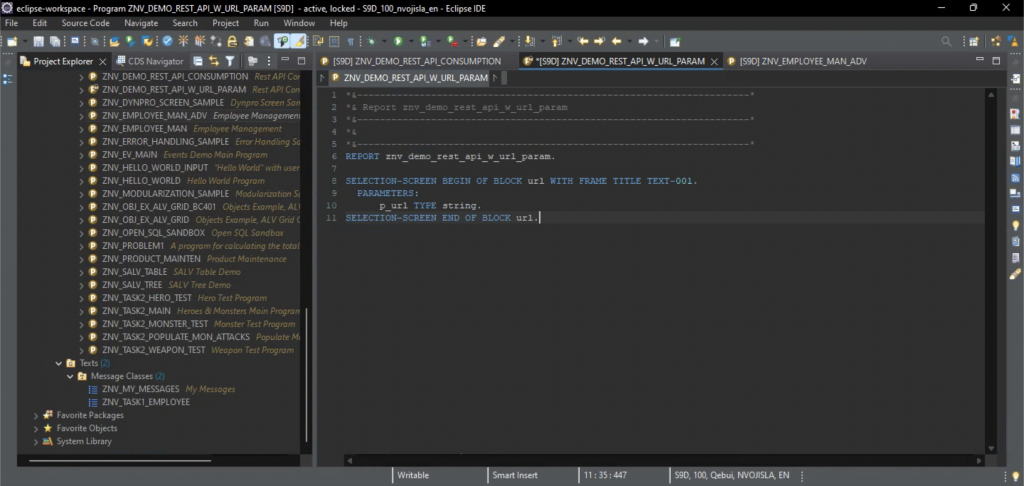
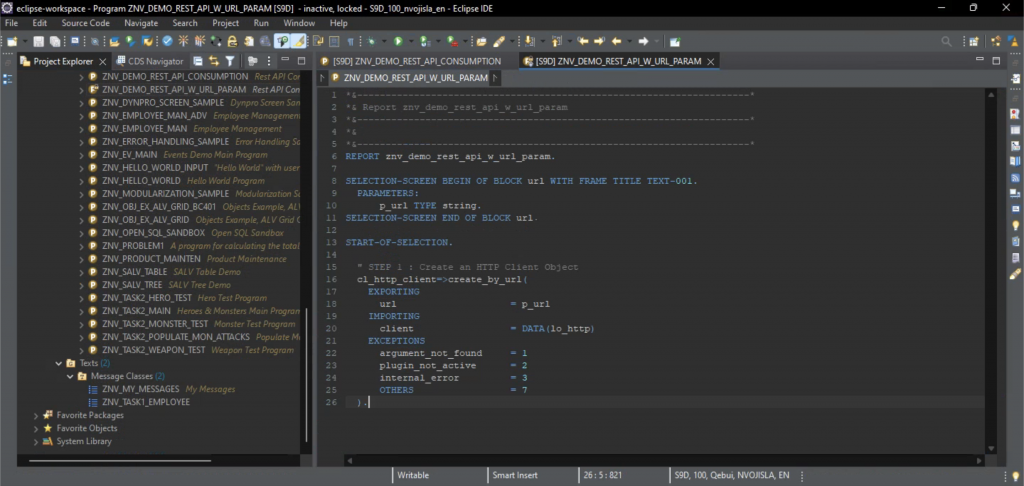
Define a selection screen with a single parameter of type string (Screenshot 2).

Screenshot 2 – Defining a selection screen.

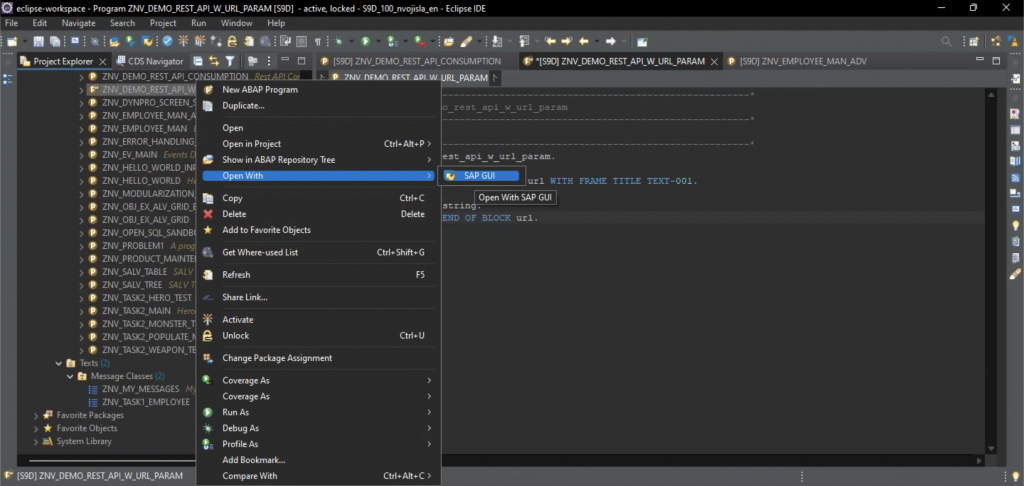
In order to get the selection screen frame caption and the parameter label open the program with SAP GUI (Screenshot 3).

Screenshot 3 – Opening the program with SAP GUI.

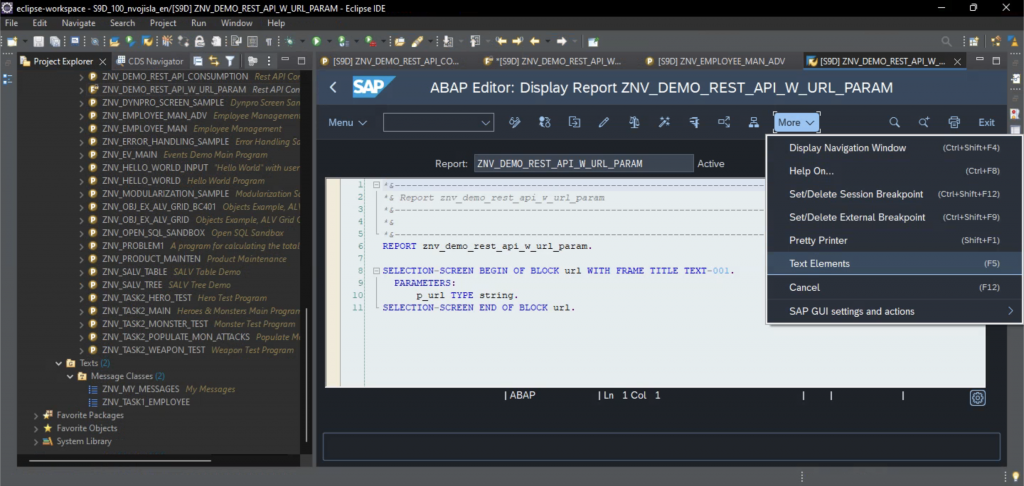
Head over straight to the Text Elements page (Screenshot 4).

Screenshot 4 – Program opened with SAP GUI.

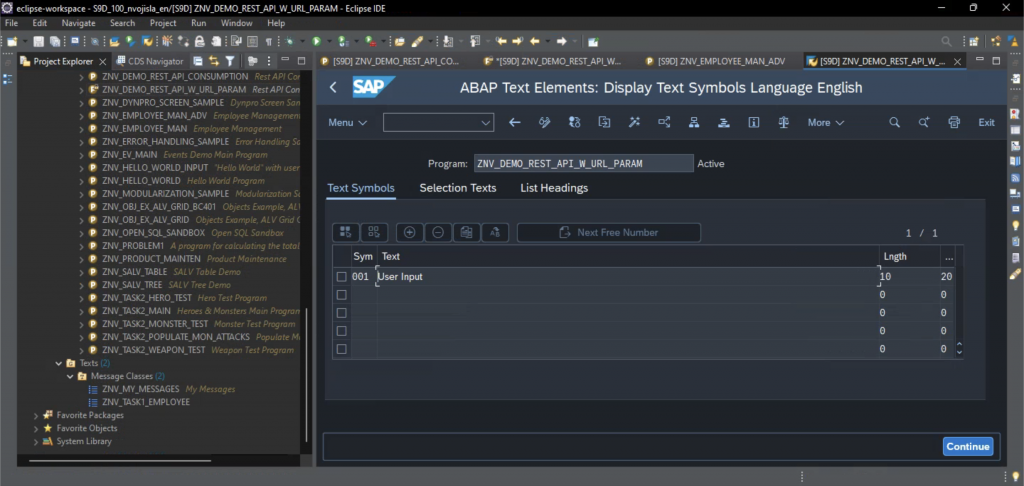
Add the entry 001 into the Text Symbols table with value “User Input” (can be anything really). The filled out table can be seen on Screenshot 5.

Screenshot 5 – Text Symbols table.

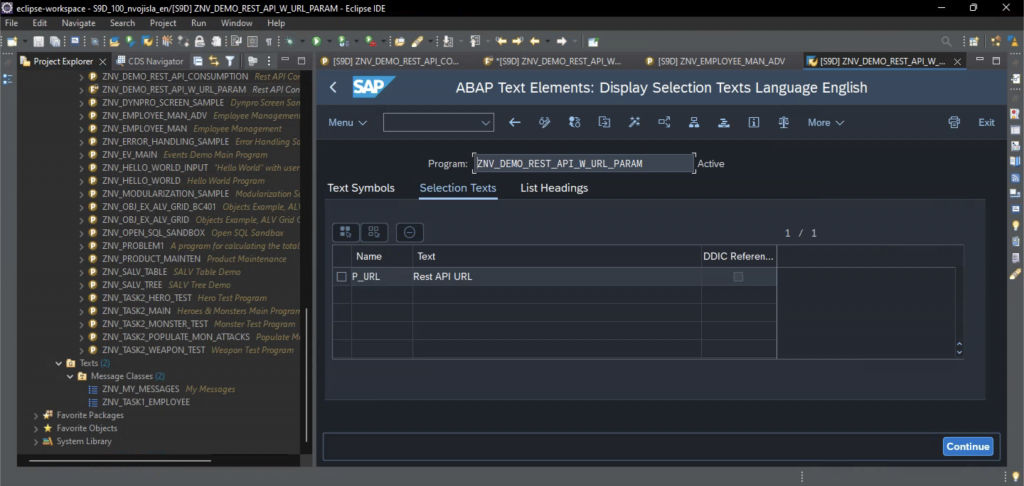
Now, head over to the Selection Texts tab and change the value of P_URL entry to “Rest API URL” (again, it can be anything). Check Screenshot 6 for comparison.

Screenshot 6 – Selection Texts table.

This concludes the initial setup, thus letting us move on to consuming the REST API itself.

Consuming the REST API

The basic idea, which is by no means exclusive to ABAP, comes down to following five steps:

  1. Create an HTTP Client Object
  2. Make a Request
  3. Ask for a Response
  4. Get the Data
  5. Display the Data

Create an HTTP Client Object

To create an HTTP client object in ABAP one should make use of cl_http_client class and its static method create_by_url (there are other options as well but this one suits us best in this case).

In order to make use of Eclipse’s advanced assistance features, start typing the name of the class and then hit CTRL+Space – an auto-complete list should pop up letting you choose one of the options available based on what you typed down already. Not only does this work with methods as well, but there is an additional feature of using SHIFT+Enter to select the method, which then types out the entire signature, i.e. reveals all the IMPORTING, EXPORTING, EXCEPTIONS and other types of parameters that the method works with (Screenshot 7).

Screenshot 7 – Creating an HTTP Client Object.

The method create_by_url takes in the URL of the REST API we wish to consume (fed in via parameter on the selection screen in this case) and returns the HTTP client object it creates (lo_http in our case). The exceptions stated in the signature can then be evaluated and properly handled, however that is out of the scope of this tutorial.

Make a Request

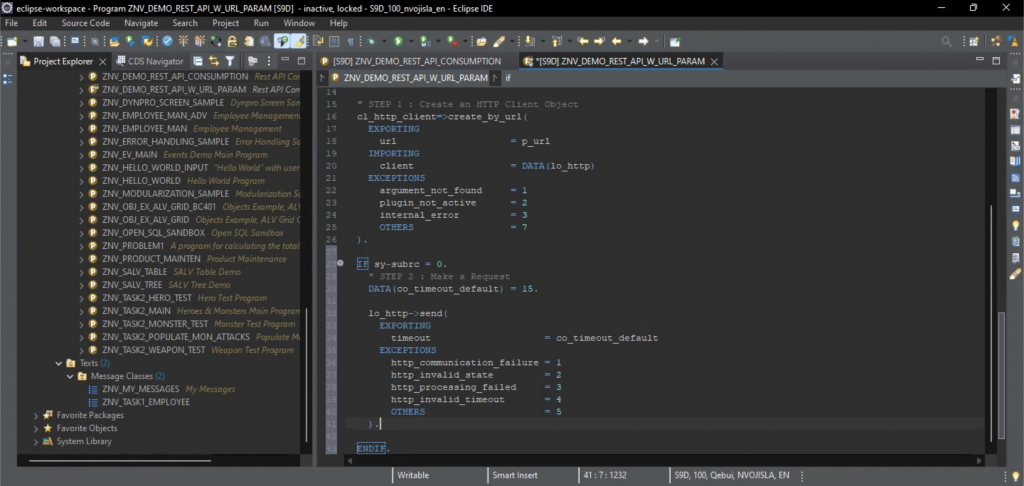
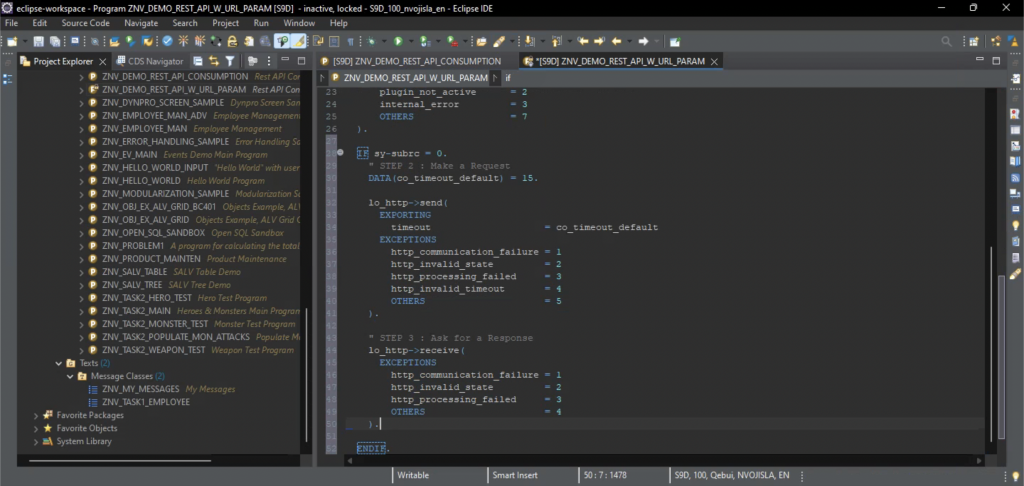
The IF sy-subrc = 0. check ensures that the program is terminated in case any errors occur. 

If, on the other hand, all went well we now have our HTTP client and we are in position to make a request. For this we utilise the send method (again, CTRL+Space and SHIFT+Enter make our lives easier in Eclipse) which only cares about a timeout value, which is here set to 15 but can be any other value that works as well. The result can be seen on Screenshot 8.

Screenshot 8 – Making a Request.

Ask for a Response

Now that the request has been made, we should ask for a response – this is achieved through method receive which takes no input and returns no output values (Screenshot 9).

Screenshot 9 – Asking for a Response.

Get the Data

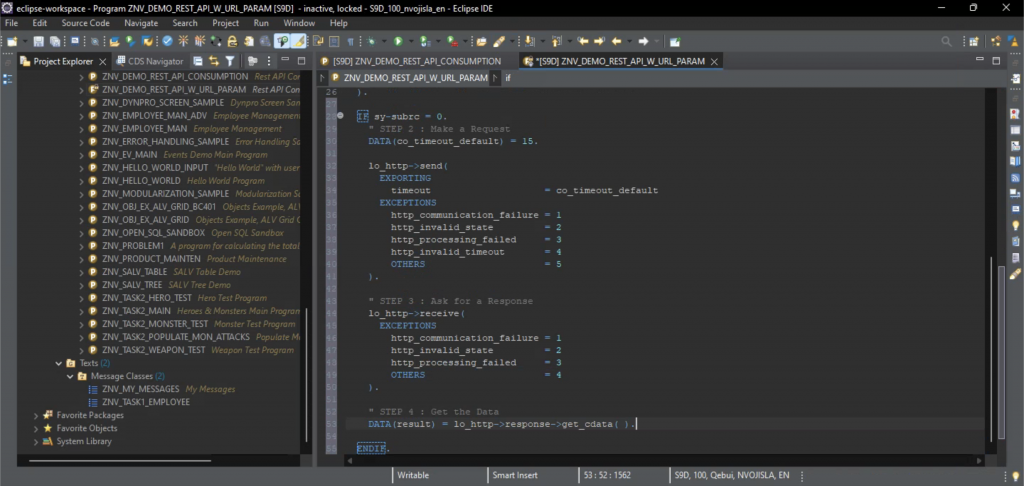
Data is accessed via response, which is a field of the lo_http object. The get_cdata method used is the way of getting the data in character format, i.e. as a string. Since what we will be receiving from the API is a JSON object, this is exactly what we want (Screenshot 10).

Screenshot 10 – Getting the Data.

Display the Data

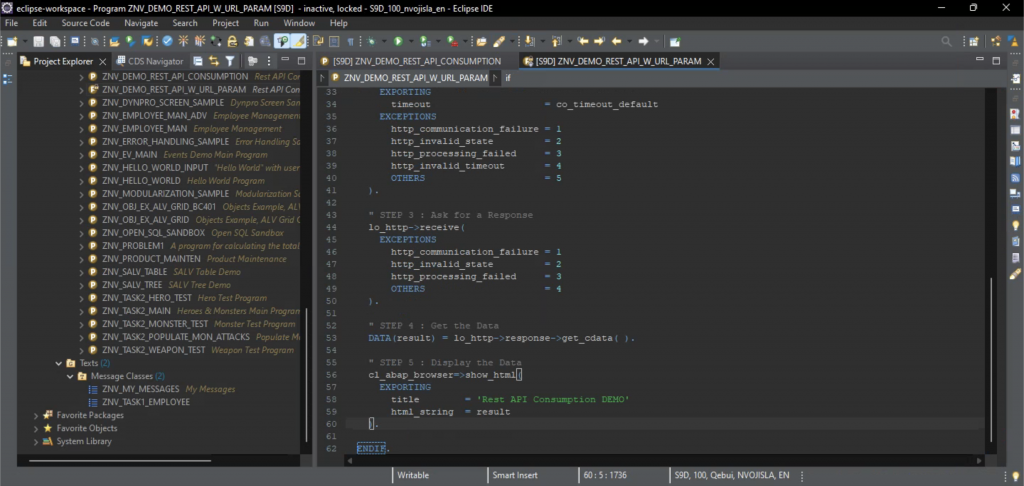
The data is displayed using the cl_abap_browser class and its method show_html. The method signature once fully displayed in Eclipse is pretty self-explanatory, however of its myriad of input parameters we will only be using two. This gives us perhaps not the fanciest, but certainly quite serviceable display of the JSON objects retrieved (Screenshot 11).

Screenshot 11 – Displaying the Data.

Example of REST APIs Ready for Consumption

Some of the URLs I have used are listed below:

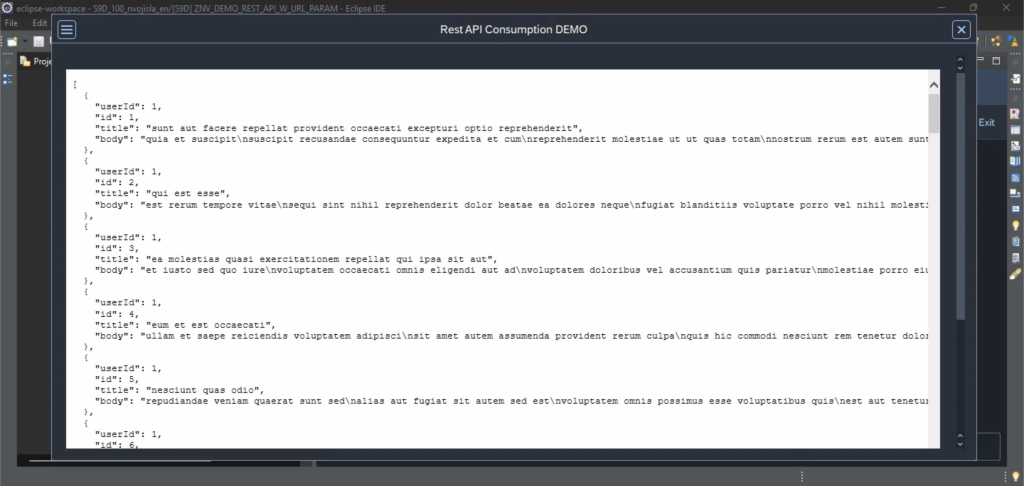
Screenshot 12 – Data Displayed as an HTML Page.

The final result can be seen on Screenshot 12.

References

Gillis, Alexander S. “REST API (RESTful API)”. TechTarget, 11 Oct. 2022, https://www.techtarget.com/searchapparchitecture/definition/RESTful-API

Citation style is MLA (9th ed.).

Using Mylyn 3.23 with Eclipse ADT

Mylyn is a task management system that is integrated in the Eclipse tooling. As a tool it is highly recommended for the purpose of automatic organisation of Eclipse ADT workspace.

Install the plugin via Eclipse Marketplace: input “mylyn” as search term and then choose Mylyn 3.23 (currently latest version, it’s not the first result so scroll down a bit).

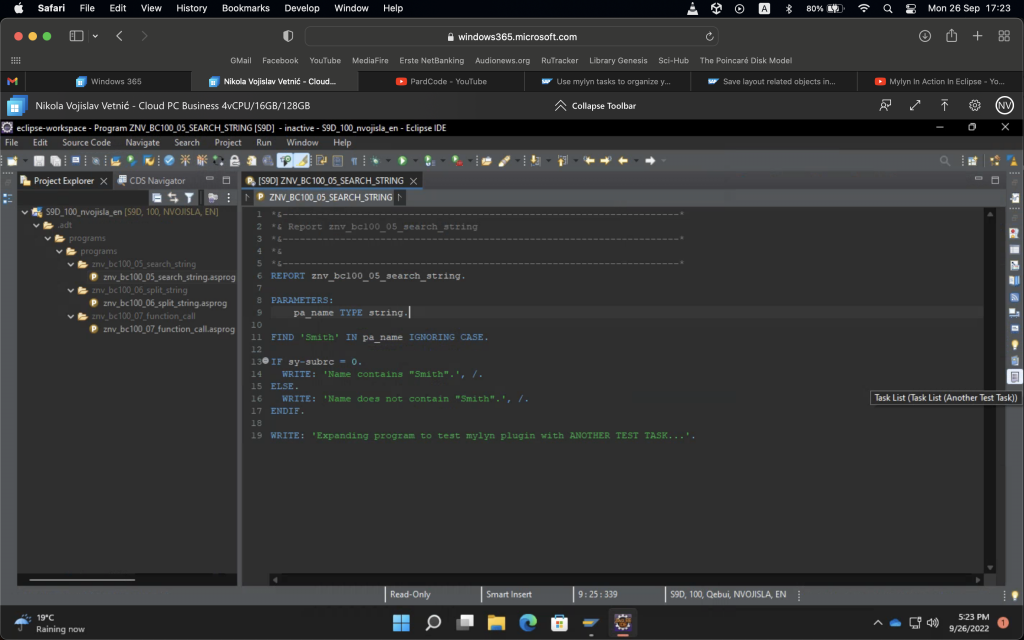
Screenshot 1 – Task List icon.

After restarting Eclipse access the Task List via Window / Show View / Task List, or via shortcut to the right (Screenshot 1).

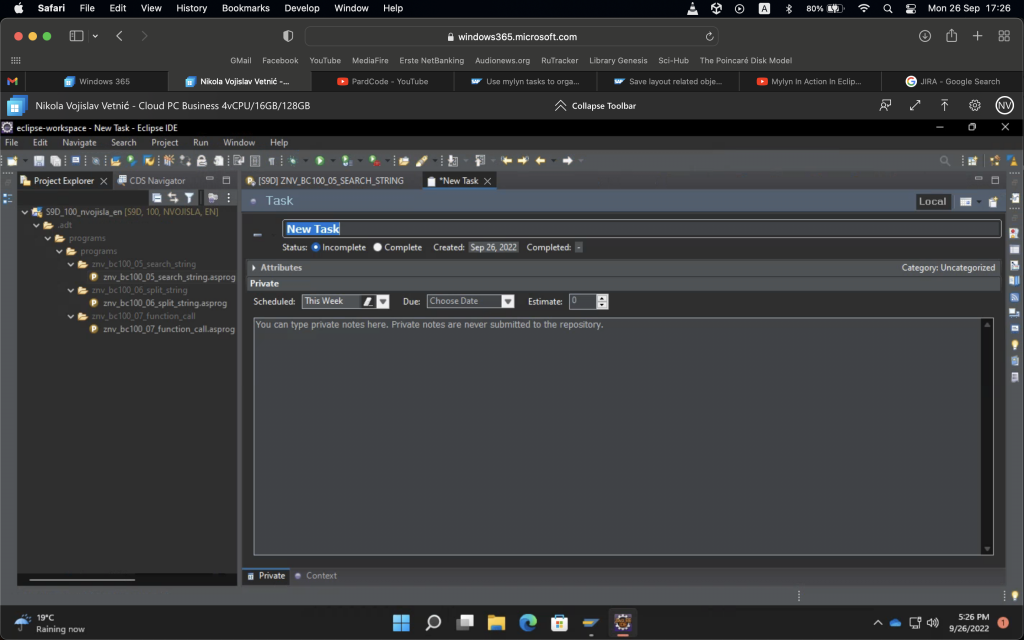
Screenshot 2 – Create a new task.

Create a new task as either a local task or a task connected to one of the supported issue tracking tools such as JIRA – NB, I have only tested the local task functionality so far. Fill out the requested fields and save the task (Screenshot 2).

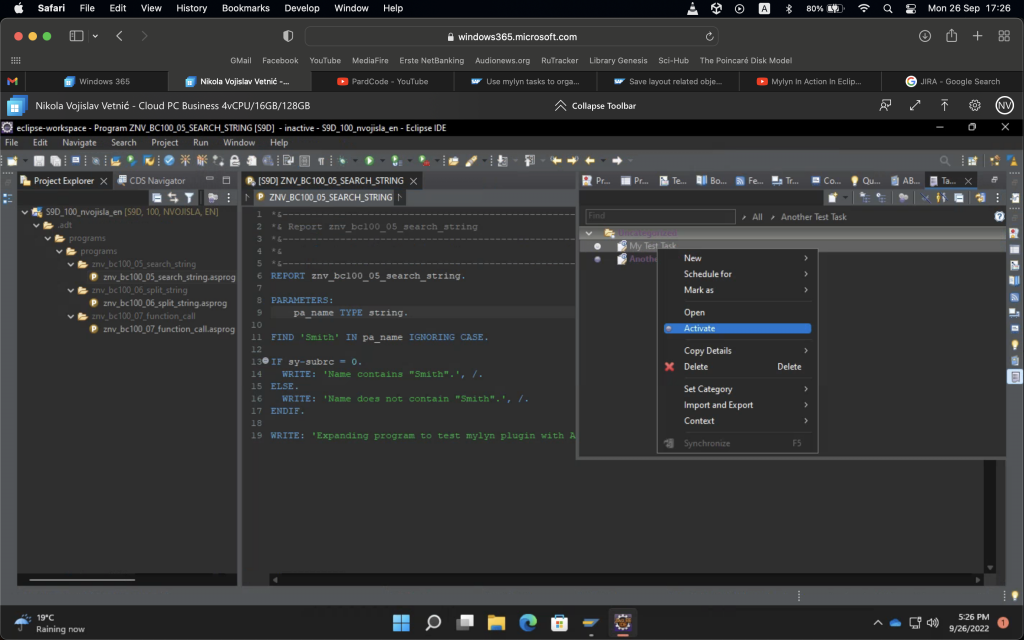
Screenshot 3 – Activate task.

Now, access the Task List again, right click on one of the tasks and select Activate (Screenshot 3). Activating the task for the first time will close the ABAP project in the Project Explorer to the left.

The purpose of Mylyn is automatically monitoring the files the developer accesses during work on a particular task so that once focus switches to that task again all unnecessary data stays hidden. Any files accessed while a task is active will be marked as “important” for the task and will thus be revealed any time the task is accessed.

Using the + sign button next to the project name in Project Explorer will reveal all the project files. Closing and opening the project again will once more reveal only the files Mylyn recognised as important for the active task.

Sights of K’NOSSOS Chapter VI

Following the lowest geographical point in the adventure visited in Chapter V the penultimate section of the game features the great Assembly Hall of K’nossos as well as one of the lavish mansions situated in the living quarters of the city. In regards of story, some enigmas left over from before are to be resolved and several new ones are to emerge here. The conclusion of the long quest is at hand by now so these will not keep you on the edge for long.

CH6-01-VoquevPalace_Entrance

Similar to what we did with Chapter V update we will not showcase the entirety of graphics here. There is a game to be played, not one to be spoiled. Also, it is important to state the obvious – once all the graphical assets are complete, the game is yet to be assembled and thus we are not approaching the finish line just yet… But, it is an important milestone to reach as the graphics are absolutely the most demanding aspect of production so we expect things to roll much faster once that is behind us.

That would be all for now. October 23 is just around the corner and traditions should definitely be kept.

K’NOSSOS Chapter V Assets Completed

As I sat down to write this update I checked the date – (almost) 23 August, which makes it three months to date since the last major update. That also makes this batch of assets the one we produced the fastest which is quite a feat in its own right, given that nothing much was done between the end of May and early July.

K’NOSSOS Chapter V – Crypt, Plaza

In other words, the sites you will visit in Chapter V have been completed – the Displacement Maze will take you from K’nossos I to K’nossos II, the lowest geographical point of our adventure, a place of (some) revelations and also of more mysteries which will, luckily, not take too long to resolve.

More so, the design requires us to keep the backdoor to Chapter IV open so there will be a massive world to explore at this point, which will be expanded further by what we will add in Chapter VI. Appropriately interesting puzzles are being devised at this moment.

This time we will not showcase all the level graphics for Chapter V. The reason is simple – K’NOSSOS storyline hinges on a secret which will (hopefully) stay hidden from the players until the very end of the game and which would, if learned prematurely, spoil most of the fun the game has to offer. We are therefore hiding some of the revealing assets from you in order to make the game worth playing once completed. Same approach will be applied to the remainder of the game.

That’s all for now. Chapter VI ahead.

Transfer Learning, Finding Learning Rate, and More

Training a neural network from scratch is unnecessary in a situation when pretrained models are readily available. This notebook showcases loading a pretrained model directly from pytorch.models subpackage, its subsequent re-training for the specific problem at hand, a method used to determine the optimal learning rate, ways of defining custom transforms and finally assembling several models into an ensemble.

PyTorch_Article

Once again, the examples are based on Chapter 4 of Ian Pointer’s “Programming PyTorch for Deep Learning”, released by O’Reilly in 2019.

Jupyter notebook of the model may be found on GitHub: https://tinyurl.com/yyzth69w

Also, the same notebook is available on Google Colab (where it can be tested it against the GPU available there): https://tinyurl.com/y4rlnqfs

Convolution Neural Network Image Classifier

Following the initial image classifier built using the feed-forward architecture the convolution neural networks are the next step on the quest of surpassing human-level accuracy. In essence, the nodes making up the layers of CNNs are not fully connected with nodes adjacent to them, but are rather divided into distinct sets covered by the filter, or the convolution kernel (hence the name).

PyTorch_Article

Such an approach allows the network to “compress” tensors and thus extract and (hopefully) learn important details about the images it is trying to classify. In result the network is both more accurate and also faster to train from the get-go. Also, it’s important to mention that the CNN in this case is actually AlexNet, historically important first network that attempted to classify images as described.

In case you’re interested in an entry level PyTorch deep learning textbook I wholeheartedly recommend the following book by Ian Pointer: https://tinyurl.com/y269xn26

Jupyter notebook of the model may be found on GitHub: https://tinyurl.com/y467epf9

Also, the same notebook is available on Google Colab (where it can be tested it against the GPU available there): https://tinyurl.com/y3faorp8