In this article we will take a look at how to implement a “slot-based” save system in a Unity project in the way I did it for my currently developed game SODHARA. A “slot-based” system has been around for a long time and is employed in many games, with Super Metroid perhaps being the first that comes to mind.
1 Overview
The basic idea is to have a (finite or infinite, in the case of this example it is three) number of slots of which the player selects one at the start of game, after which the game is saved automatically into that particular slot, usually upon quitting the current game. This is the variant covered by this article, although a few variations will be briefly touched upon at the very end.
In order to make this work, the following components are needed:
- a save game system, which will take care of the actual file writing and reading,
- a slot selection menu, which displays the current state of available slots and allows any of them to be selected or cleared, and finally
- an in-game pause menu, which will trigger the save game method upon quitting to main menu.
Let us inspect each of the moving parts individually.
2 Save System Controller
The save system controller is a component needed by both the UI system as well as the game proper. For that reason, I prefer to create an object which will persist (note that the term persistence here is used in a context different to the one related to databases) through scene transitions, and attach the save system controller script to that object, which precisely how I did it in SODHARA. In addition, it is logical to make that object a singleton, which yields the Awake() method for the SaveSystemCtrl script as given in Listing 1.
public static SaveSystemCtrl instance;

private void Awake()
{
    if (instance == null)
    {
        instance = this;
        DontDestroyOnLoad(gameObject);
    }
    else
    {
        Destroy(gameObject);
    }

    activeSlotIdx = -1;
}
Listing 1. The Awake() method of the SaveSystemCtrl persistent singleton class.
In order to justify its name the SaveSystemCtrl script the methods with which to save, load and clear game information. In addition, it needs the actual save data and for that I recommend writing a dedicated data class. The reason is purely organisational, as it allows one to keep track of what is being saved much more easily and efficiently. An example of one such class is given in Listing 2.
using UnityEngine;

[System.Serializable]
public class SaveData
{
    public int slotIdx;
    public bool isSlotEmpty;

    [Header("PLAYER STATE")]
    public int playerHealth;
    public int amountOfCrystals;

    [Header("PLAYER POSITION")]
    public int sceneIdx;
    public string sceneName;
    public Vector3 playerPosition;

    public SaveData()
    {
        slotIdx = 0;
        isSlotEmpty = true;

        playerHealth = 0;
        amountOfCrystals = 0;

        sceneIdx = 0;
        sceneName = "";
        playerPosition = Vector3.zero;
    }
}
Listing 2. The SaveData class keeps track of player’s health, amount of crystals and position.
The class is as standard as they come, the only part of which that requires a comment being the [System.Serializable] attribute which enables the display of the data class in Unity’s inspector. Constructor in this case is a matter of convenience and is not in any way mandatory.
Back to SaveSystemCtrl class – the first method we will work on is CreateSaveData() which has all the introduction it needs in its name alone and is shown in Listing 3.
private SaveData CreateSaveData()
{
    SaveData data = new SaveData();

    data.slotIdx = activeSlotIdx;
    data.isSlotEmpty = false;

    data.playerHealth = PlayerHealthController.instance.currentHealth;
    data.amountOfCrystals = DestructableTracker.instance.amountOfCrystals;

    data.sceneIdx = SceneManager.GetActiveScene().buildIndex;
    data.sceneName = SceneManager.GetActiveScene().name;
    data.playerPosition = PlayerController.instance.transform.position;

    return data;
}
Listing 3. The SaveSystemCtrl.CreateSaveData() method.
What this method does is access the relevant player information and use it to fill up an instance of the SaveData class and then pass it onward for other methods of the SaveSystemCtrl class to use. In fact, this data is only used by a single method, that one being Save() as given in the Listing 4.
public void Save()
{
    if (PlayerController.instance == null)
    {
        Debug.LogWarning("Player not found");
        return;
    }

    string dataPath = $"{Application.persistentDataPath}/slot{activeSlotIdx}.save";

    Debug.Log($"Saving to ${dataPath}...");

    var serializer = new XmlSerializer(typeof(SaveData));
    var stream = new FileStream(dataPath, FileMode.Create);
    serializer.Serialize(stream, CreateSaveData());
    stream.Close();
}
Listing 4. The SaveSystemCtrl.Save() method.
The method first checks whether the player exists at all. Next, the save file path is built using the Application.persistentDataPath value which contains the path to a persistent data directory. The data we are saving will then be serialised into an XML format and then fed into a file stream in order to write it into a file, and for that reason we are instancing the XmlSerializer and FileStream classes. After saving the data the stream is closed.
In order to reveal the actual folder to which the Application.persistantDataPath value points to, one can use the command given in the Listing 5.
EditorUtility.RevealInFinder(Application.persistentDataPath);
Listing 5. Revealing the Application.persistantDataPath folder in Finder or Explorer.
We will now take a look at the ReadSaveData(int slotIdx) method displayed in the Listing 6.
public SaveData ReadSaveData(int slotIdx)
{
    SaveData data = new SaveData();

    string dataPath = $"{Application.persistentDataPath}/slot{slotIdx}.save";

    if (!File.Exists(dataPath))
        return data;

    var serializer = new XmlSerializer(typeof(SaveData));
    var stream = new FileStream(dataPath, FileMode.Open);
    data = serializer.Deserialize(stream) as SaveData;

    data.isSlotEmpty = false;

    stream.Close();

    return data;
}
Listing 6. The SaveSystemCtrl.ReadSaveData() method.
There isn’t much to comment on in this case, as it is basically the same procedure as saving the game except for the “reverse” direction. Once the save file is read, the data is returned to the caller of the method.
Next up is the BackupAndClearSaveData(int slotIdx) method. As the save files in my project are fairly small, I decided to not simply clear them on deletion, but back them up in a dedicated folder. The code to do so is given in the Listing 7 and is fairly simple.
public void BackupAndClearSaveData(int slotIdx)
{
    string dataPath = $"{Application.persistentDataPath}/slot{slotIdx}.save";

    if (!File.Exists(dataPath))
    {
        Debug.LogWarning("File not found");
        return;
    }

    string targetDir = $"{Application.persistentDataPath}/deleted";

    if (!System.IO.Directory.Exists(targetDir))
        System.IO.Directory.CreateDirectory(targetDir);

    string targetDataPath = $"{Application.persistentDataPath}/deleted/{DateTime.Now.ToString("yyyyMMdd_HHmmss")} slot{slotIdx}.save";

    System.IO.File.Move(dataPath, targetDataPath);
}
Listing 7. The SaveSystemCtrl.BackupAndClearSaveData(int slotIdx) method.
After checking whether the save file exists we create the path to the backup directory, check if it exists and if not create it, and finally move the “deleted” save to the backup dir.
Finally, let’s have look at the ApplySavedDataAndClear() method as given in Listing 8.
public void ApplySavedDataAndClear()
{
    StartCoroutine(ApplySavedDataAndClearCoroutine());
}

private IEnumerator ApplySavedDataAndClearCoroutine()
{
    yield return new WaitForSeconds(.1f);

    PlayerHealthController.instance.currentHealth = dataToLoad.playerHealth;
    UIController.instance.UpdateHealth(PlayerHealthController.instance.currentHealth, PlayerHealthController.instance.maxHealth);
    DestructableTracker.instance.amountOfCrystals = dataToLoad.amountOfCrystals;

    PlayerController.instance.transform.position = dataToLoad.playerPosition;
    Camera.main.transform.position = new Vector3(
        dataToLoad.playerPosition.x, dataToLoad.playerPosition.y, Camera.main.transform.position.z);

    shouldLoadData = false;
    dataToLoad = null;

    GlobalSettingsCtrl.instance.fadeScreenCtrl.StartFadeFromBlack();
}
Listing 8. The SaveSystemCtrl.ApplySavedDataAndClear() method.
Just as ReadSaveData() is the opposite of Save(), so is ApplySavedDataAndClear() basically the opposite of CreateSaveData(). The dataToLoad attribute of the SaveSystemCtrl class is set in advance by one of the other scripts which handles save slot selection in the appropriate menu, which is done in order to persist saved data between scenes by saving it with a persistent object. Other than that there is nothing out of the ordinary, as the player’s health, crystal amount, position, as well as camera position are read from the saved data and applied. The saved game slot is then cleared and indicator boolean set to false. The final line activates a fade to black which is of course purely aesthetical and will not be further elaborated upon here.
3 Slot Selection Menu
Next up is the slot selection menu. The design is of course up to you, but as an idea you may inspect Image 1 and see how I did it for SODHARA.

Image 1. A slot selection menu design idea.
There are obviously two types of buttons in this menu, those being the Back button and the slot buttons, which also come in two states, i.e. empty (default) and populated. To the right of each slot button is the button used for clearing the slot and I consider these auxiliary elements part of the slot button in the populated state.
Much as it was the case with save data, it would be handy to have a data class to represent the stuff that this slot selection button should display. One such class is shown in Listing 9 and it is, unsurprisingly, quite similar to the SaveData class we inspected earlier.
public class SlotSelectionButton : MonoBehaviour
{
    [Header("FIELDS")]
    public GameObject dataEmpty;
    public GameObject dataPopulated;

    [Header("POPULATED DATA")]
    public TMP_Text captionHealth;
    public TMP_Text captionCrystals;
    public TMP_Text captionArea;
}
Listing 9. The SlotSelectionButton class contains the information displayed by a populated slot button.
As this class is not to be used in the Unity inspector there is no need to serialise it by adding the [System.Serializable] attribute as we did with SaveData earlier.
Listing 10 shows the class fields we are using in the SlotSelectionMenu class. The buttons are self-explanatory, the mainMenu points to the “upper-level” menu in relation to the slot selection one, and the saveData contain the data read from the three currently available save slots.
[Header("BUTTONS")]
public GameObject btnSlot0;
public GameObject btnSlot1;
public GameObject btnSlot2;
public GameObject btnBack;

[Header("MENUS")]
public GameObject menuMain;

[Header("OTHER")]
public SaveData[] saveData = new SaveData[3];
Listing 10. The SlotSelectionMenu class fields.
The slot selection menu is stored as a game object which is interchangeably activated and deactivated as the player flips between it and the main menu. Therefore, the slot buttons become relevant only when this menu is active and they should be updated each time it is activated. Now, this presents some questions in regards to optimisation, as it is not really necessary to update the slots each time the menu is activated since it is only possible to save while in-game, but for simplicity purposes let’s do it this way, especially as it does not significantly hinder the performance. In order to track the activation of the object we need Unity’s OnEnable function as shown in Listing 11.
private void OnEnable()
{
    PopulateSlotData();
}

private void PopulateSlotData()
{
    for (int i = 0; i < 3; i++)
        PopulateSlotDataByIdx(i);
}

private void PopulateSlotDataByIdx(int slotIdx)
{
    SlotSelectionButton currSlot = (slotIdx == 0 ? btnSlot0 : slotIdx == 1 ? btnSlot1 : btnSlot2).GetComponent<SlotSelectionButton>();

    SaveData data = SaveSystemCtrl.instance.ReadSaveData(slotIdx);
    saveData[slotIdx] = data;

    currSlot.dataEmpty.SetActive(data.isSlotEmpty);
    currSlot.dataPopulated.SetActive(!data.isSlotEmpty);

    if (data.isSlotEmpty) return;

    currSlot.captionHealth.text = $"HP {data.playerHealth}";
    currSlot.captionCrystals.text = $"CRYS {data.amountOfCrystals}";
    currSlot.captionArea.text = $"Area: {data.sceneName}";
}
Listing 11. Populating the save game slots upon activating the menu within SlotSelectionMenu class.
We’ll concentrate on the PopulateSlotDataByIdx(int slotIdx) method as the other two are self-explanatory. The relevant button is selected based on the slotIdx argument – the buttons could’ve been saved as an array in which case this would be slightly simpler, but I opted for this route in this particular case. Next, the saved data is read and stored in the saveData array, after which the button is set up for display. Button’s default state is empty so that one requires no setup. Based on the state of the isSlotEmpty field of the data variable the empty and populated state are activated or deactivated, and then the check to see if there is any data to be loaded is made – if not the method returns, otherwise the relevant info is fed into the TMP_Text elements of the button.
Shown in Listing 12 is the ClearSlot() method which does exactly what it says it does. Again, it is not necessary to reload all the slots after clearing one of them, but in this case it’s a simple and cheap solution so I opted for that route once again.
public void ClearSlot(int slotIdx)
{
    SaveSystemCtrl.instance.BackupAndClearSaveData(slotIdx);
    PopulateSlotDataByIdx(slotIdx);
}
Listing 12. The SlotSelectionMenu.ClearSlot() method.
The final element of the SlotSelectionMenu script is the StartGame(int slotIdx) method as shown in the Listing 13.
public void StartGame(int slotIdx)
{
    GlobalSettingsCtrl.instance.fadeScreenCtrl.StartFadeToBlack();
    StartCoroutine(StartGameCoroutine(GlobalSettingsCtrl.instance.fadeScreenCtrl.fadeSpeed, slotIdx));
}

private IEnumerator StartGameCoroutine(float timeToWait, int slotIdx)
{
    yield return new WaitForSeconds(timeToWait);

    SaveSystemCtrl.instance.activeSlotIdx = slotIdx;

    SaveSystemCtrl.instance.shouldLoadData = !saveData[slotIdx].isSlotEmpty;
    SaveSystemCtrl.instance.dataToLoad = saveData[slotIdx].isSlotEmpty ? null : saveData[slotIdx];

    SceneManager.LoadScene(saveData[slotIdx].isSlotEmpty ? menuMain.GetComponent<MainMenu>().newGameScene : saveData[slotIdx].sceneName);
}
Listing 13. The SlotSelectionMenu.StartGame() method.
The reason I use the coroutine is this case is solely in order to make my crossfade thingy, i.e. the fadeScreenCtrl component, work properly. What is happening basically is that I initiate a fade to black and only once that is complete will I call the StartGameCoroutine(), so that all the nasty transitions are happening behind the black curtain.
The activeSlotIdx of the SaveSystemCtrl class is the currently active slot, i.e. the one to which the game will be saved upon quitting the game via pause menu – obviously, it must persist through the scene transitions and is therefore kept in a persistent object. Fields shouldLoadData and dataToLoad are used for feeding the player the saved data after loading the required scene, which is done in the last line of the method, which loads the first scene in the game if the slot is empty, otherwise it loads the scene contained in the save file.
The last relevant snippet of code for loading the game can be seen in Listing 14.
private void OnSceneLoaded(Scene scene, LoadSceneMode mode)
{
    if (SaveSystemCtrl.instance.shouldLoadData)
        SaveSystemCtrl.instance.ApplySavedDataAndClear();
    else
        GlobalSettingsCtrl.instance.fadeScreenCtrl.StartFadeFromBlack();
}
Listing 14. Applying the save data in case the data is present, otherwise activating the crossfade.
Unity’s OnSceneLoaded() function is activated once the current scene is completely loaded. At that point we are sure that all the necessary assets are in their place and so we can apply the saved data such as physical position of the player safely in case there is anything to apply. If not, the player is left in its default position and the fade from black is initiated.
4 In-Game Pause Menu
In SODHARA the game is saved when the player quits the game and returns to main menu. There isn’t much to discuss here actually, as the only two relevant lines are given in the Listing 15.
SaveSystemCtrl.instance.Save();
SaveSystemCtrl.instance.activeSlotIdx = -1;
Listing 15. Saving the game upon quitting to main menu.
Setting the activeSlotIdx to -1 is simply a precaution measure and is probably not necessary but, as always with coding, it’s better to be safe than sorry.
5 Conclusion
Once all the pieces are in place your project should now have a fully functional save system in place. Shown in the Image 2 is how it looks like in SODHARA v0.4.3.
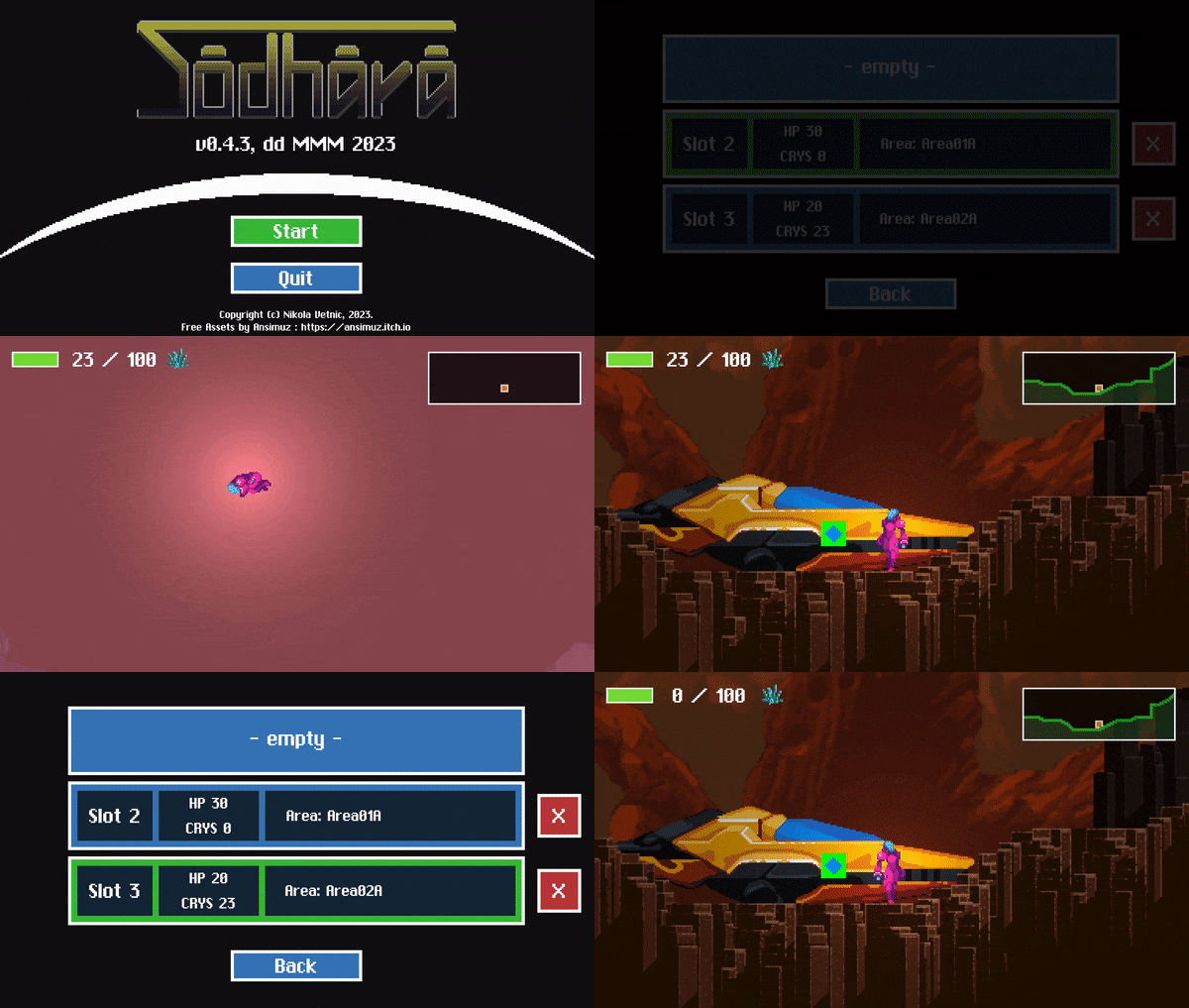
Image 2. Slot-based save system as implemented in SODHARA.
The good thing about this system is that it is fairly simple and robust, yet it allows for variations and can thus be adapted to suit different needs. What immediately comes to mind is greater number of save slots, infinite number of slots even, manual as opposed to automatic save, and even saving to an arbitrary slot which in turn makes it a classical manual save system.
For any questions and comments feel free to contact me via the contact form of the website.