
SAP Internal Tables

Unlike database tables which are used for long term data storage, the internal tables are temporary tables created and used during the program execution, being deleted prior to the program being terminated. They are used for storing the dynamic data that it sets from a (subset of a) fixed structure in the main/working memory in ABAP.

In effect, internal tables act as arrays (or even better lists – as their size is actually not fixed) in ABAP and are the most complex data objects in ABAP environment. They are most often used for storing and formatting data from a database table within a program.

Internal tables are characterised by the following properties:

  • table type determines the access type that specifies how ABAP accesses the individual table rows
  • row type determines the column that is declared with any ABAP data type
  • uniqueness of the key specifies the key as unique or non-unique
  • key components specify the criteria based on which the table rows are identified

They are most often used as snapshots of database tables (of one or even several tables), or as containers for volatile data.
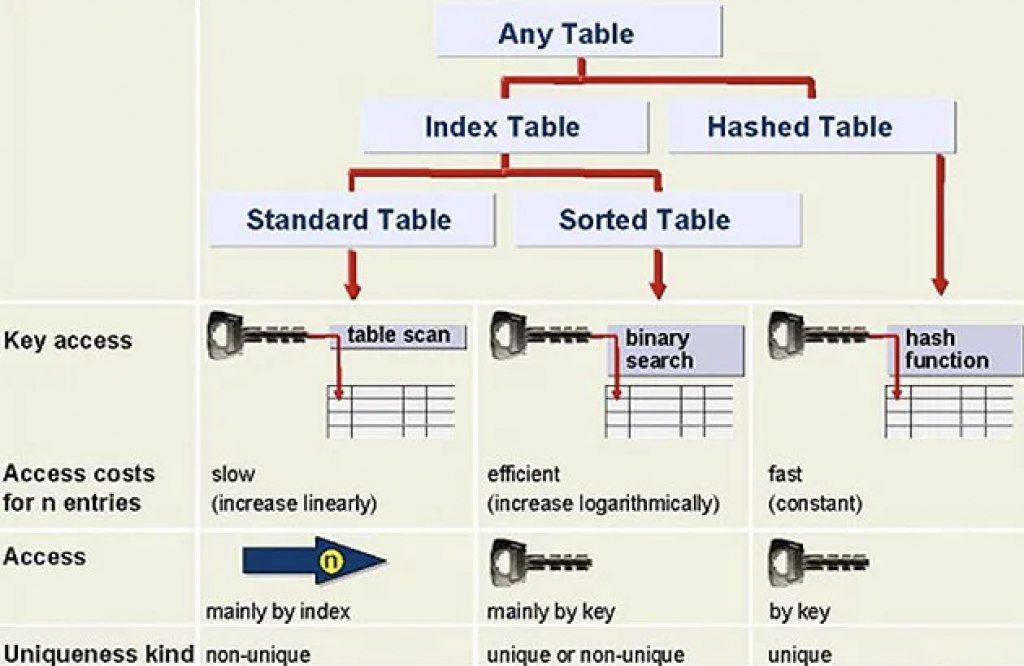
Diagram 1. Internal table types.

Internal Table Types

There are three types of internal tables in SAP ABAP programming:

  • standard internal tables
  • sorted internal tables
  • hashed internal tables
Standard Tables Sorted Tables Hashed Tables
These are default internal tables. These are a special type of internal tables, where data is automatically sorted when the record is inserted. These are used with logical databases.
It is an index table. It is an index table. It is NOT an index table.
Table has a non-unique key. Table has a unique key. Table key is unique and no duplicate entries are allowed.
Access by linear table index or key. Access by linear index or sort key. Direct access only by table key.
Either key or index operation used to read a record. Either key or index operation used to read a record. Key operation used to read the record. Index operation is not allowed.
Either linear search or binary search used to search for a record. Binary search used to search for a record. Hashed algorithm used to search for a record.
Data is not sorted by default and can use sort operation to sort the data. Data already sorted. Data already sorted.
Records can be inserted or appended. Records can be inserted. Used in ABAP with BI projects.
Response time proportional to table size. Response time logarithmically proportional to table size. Constant, fast response time.

Usage

Standard tables are most appropriate for general table operations. Accessed by referring to the table index (which is the quickest access method). Access time for standard table increases linearly with respect to the number of table entries. New rows are appended to the table. Individual rows are accessed by reading the table at a specified index value.

Sorted tables are most appropriate where the table is to be filled in sorted order. Sorted tables are filled using the INSERT statement. Inserted entries are sorted according to a sort sequence defined by the table key. Illegal entries are recognized as soon as you try to insert them into the table. Response time is logarithmically proportional to the number of table entries (since the system always uses a binary search). Sorted tables are particularly useful if you wish to process row by row using a LOOP.

Hashed tables are most appropriate when access to rows is performed by a key. Cannot access hashed tables via the table index. response time remains constant regardless of the number of rows in the table.
SAP Database Tables

There exist three types of SAP database tables: transparent tables, pool tables and cluster tables.

Transparent tables

Transparent tables are of the same structure both in dictionary as well as in the database itself, i.e. they both contain exactly the same fields and data. For that reason, one table in the data dictionary corresponds with exactly one table in the database (i.e. it is a one-to-one relationship).

These tables have at least one primary key, secondary indices can be created and they can be accessed both from within SAP ecosystem (using Open SQL) as well as outside of it using the database’s native SQL. They can be buffered, although that should be avoided in case of heavily updated tables.

Transparent tables are used to store master data, e.g. table of customers or a table of vendors. Examples of such tables are BKPF, VBAK, VBAP, KNA1, COEP, etc.

Pool Tables

Pool tables are logical tables that must be assigned to a table pool upon defining them, meaning that many tables appearing as distinct in ABAP dictionary are actually stored as one physical table within the database. This equates to a many-to-one relationship with the actual database table.

The table in the database has a different name than the tables in the DDIC, it has a different number of fields, and the fields have different names as well. Pooled tables are thus an SAP proprietary construct used to hold a large number (tens to thousands) of very small tables (about 10 to 100 rows each) in one specially constructed physical database table.

Pooled tables are primarily used by SAP to hold customizing data. Examples of SAP standard pooled tables include M_MTVMA, M_MTVMB, M_MTVMC, M_MTVMD, M_MTVME, M_MTVNF, M_MTVNG, M_MTVNH, M_MTVNI, M_MTVNJ, etc.

Cluster Tables

A cluster table is similar to a pooled table in the sense that it holds many tables within, but in this case those are cluster tables. It has a many-to-one relationship with a physical table in the database.

Cluster tables contain continuous text, for example, documentation. Several cluster tables can be combined to form a table cluster. Several logical lines of different tables are combined to form a physical record in this table type. This permits object-by-object storage or object-by-object access. In order to combine tables in clusters, at least parts of the keys must agree. Several cluster tables are stored in one corresponding table on the database.

Like pooled tables, cluster tables are another proprietary SAP construct. They are used to hold data from a few (approximately 2 to 10) very large tables. They would be used when these tables have a part of their primary keys in common, and if the data in these tables are all accessed simultaneously. Table clusters contain fewer tables than table pools and, unlike table pools, the primary key of each table within the table cluster begins with the same field or fields. Rows from the cluster tables are combined into a single row in the table cluster. The rows are combined based on the part of the primary key they have in common. Thus, when a row is read from any one of the tables in the cluster, all related rows in all cluster tables are also retrieved, but only a single I/O is needed.

A cluster is advantageous in the case where data is accessed from multiple tables simultaneously and those tables have at least one of their primary key fields in common. Cluster tables reduce the number of database reads and thereby improve performance.

Examples of cluster tables include BSEC (one-time account data document), BSED (bill of exchange fields document), BSEG (accounting document), BSES (document control data), BSET (tax data document), AUAA (settlement document – receiver), AUAB (settlement document – distribution), etc.

Restrictions on Pooled and Cluster Tables

Pooled and cluster tables are usually used only by SAP and not used by customers, probably because of the proprietary format of these tables within the database and because of technical restrictions placed upon their use within ABAP/4 programs. Restrictions on pooled and cluster tables include:

  • secondary indexes cannot be created
  • you cannot use the ABAP/4 constructs select distinct or group by
  • you cannot use native SQL
  • you cannot specify field names after the order by clause. order by primary key is the only permitted variation

Consuming a REST API with ABAP

A RESTful (or REST for short) API is an architectural style for an application program interface (API) that uses HTTP requests to access and use data. That data can be used to GET, PUT, POST and DELETE data types, which refers to the reading, updating, creating and deleting of operations concerning resources (Gillis). To consume a REST API simply means to use any part of it from an application.

The simplest form of an HTTP request is certainly GET without parameters which is usually used to retrieve all entries offered via particular endpoint. In the following tutorial I will be looking at creating an ABAP program which consumes a REST API and displays all the entries retrieved as a HTML page.

Getting Started

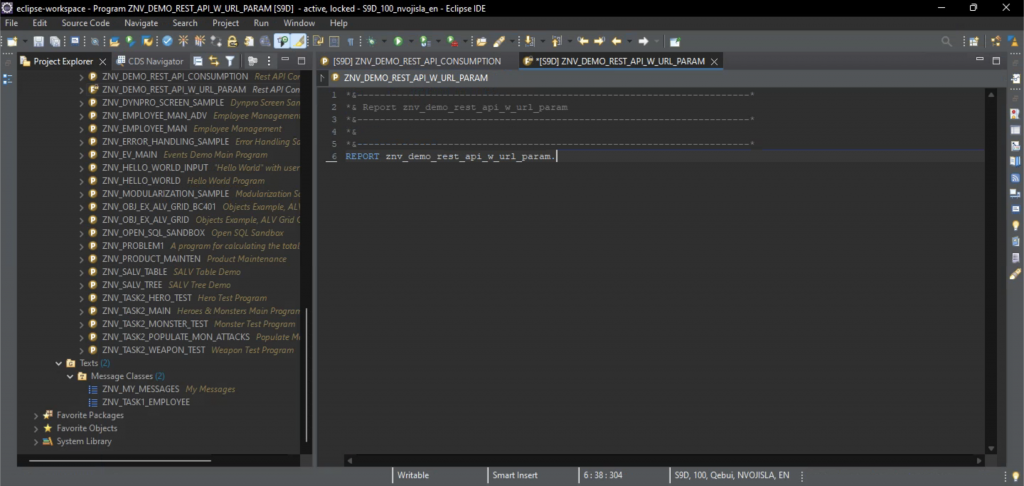
Most of the coding will be done in Eclipse with ADT, but the entire process is as easy to follow when one is using SAP GUI tools as well. Select File / New / Other, and then type in “program” to filter out the results; select ABAP Program to create one. The result can be seen on Screenshot 1.

Screenshot 1 – A new ABAP program.

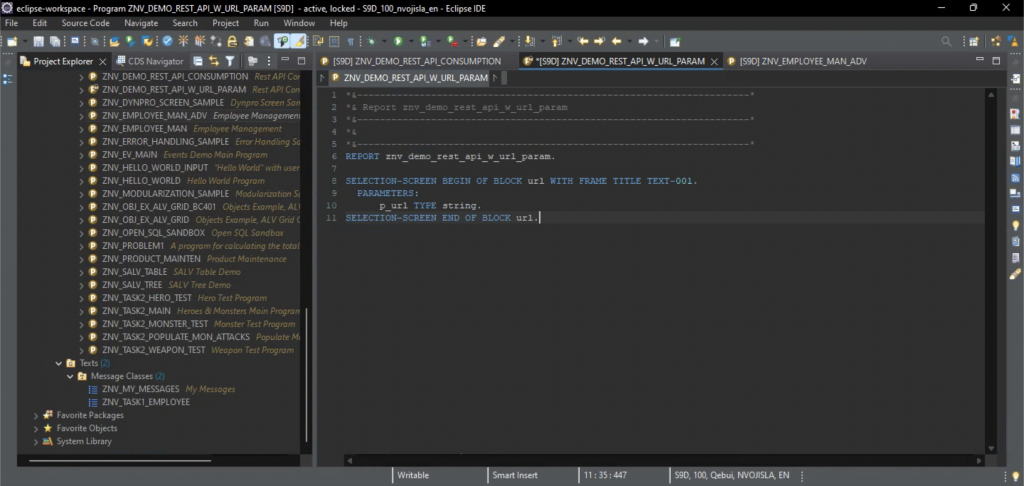
Define a selection screen with a single parameter of type string (Screenshot 2).

Screenshot 2 – Defining a selection screen.

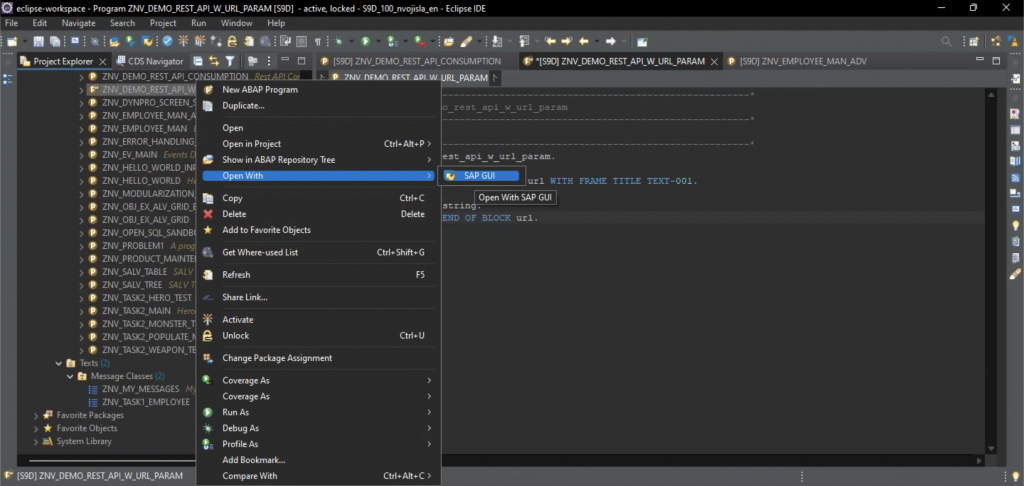
In order to get the selection screen frame caption and the parameter label open the program with SAP GUI (Screenshot 3).

Screenshot 3 – Opening the program with SAP GUI.

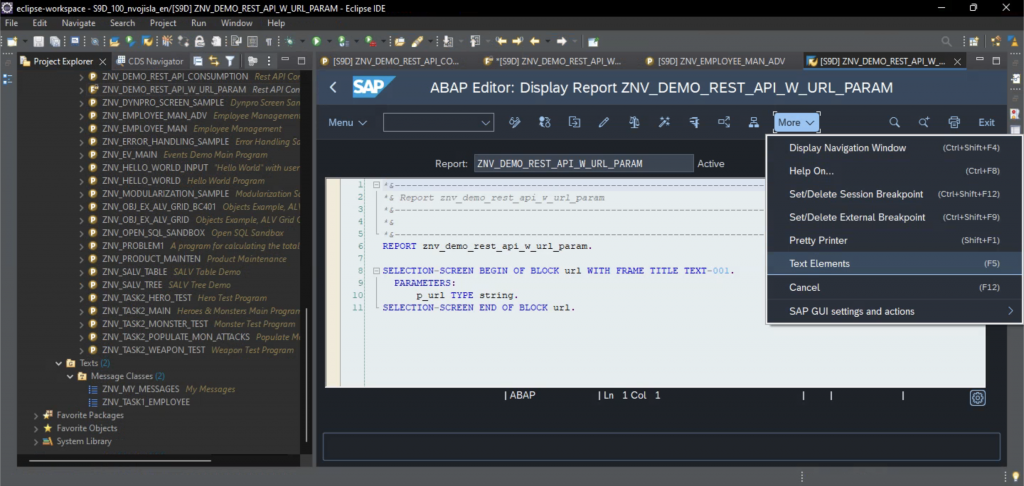
Head over straight to the Text Elements page (Screenshot 4).

Screenshot 4 – Program opened with SAP GUI.

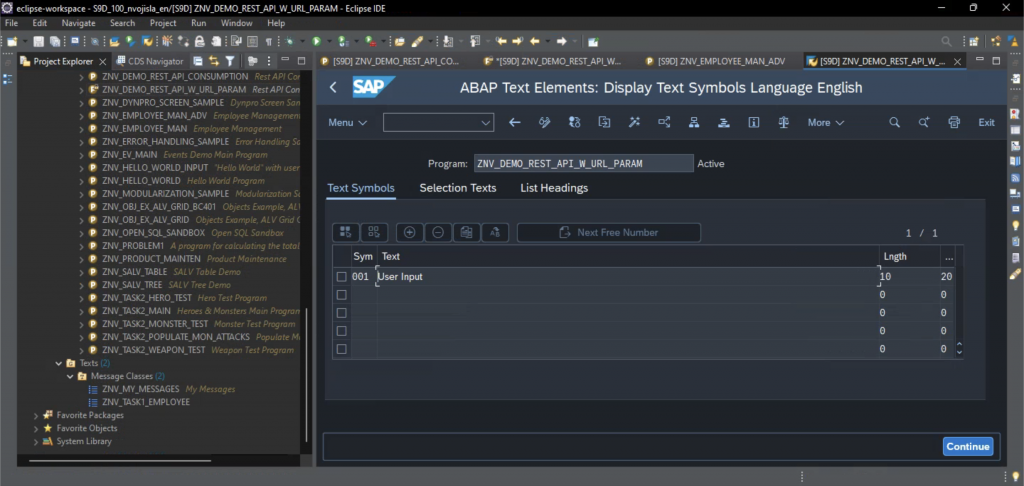
Add the entry 001 into the Text Symbols table with value “User Input” (can be anything really). The filled out table can be seen on Screenshot 5.

Screenshot 5 – Text Symbols table.

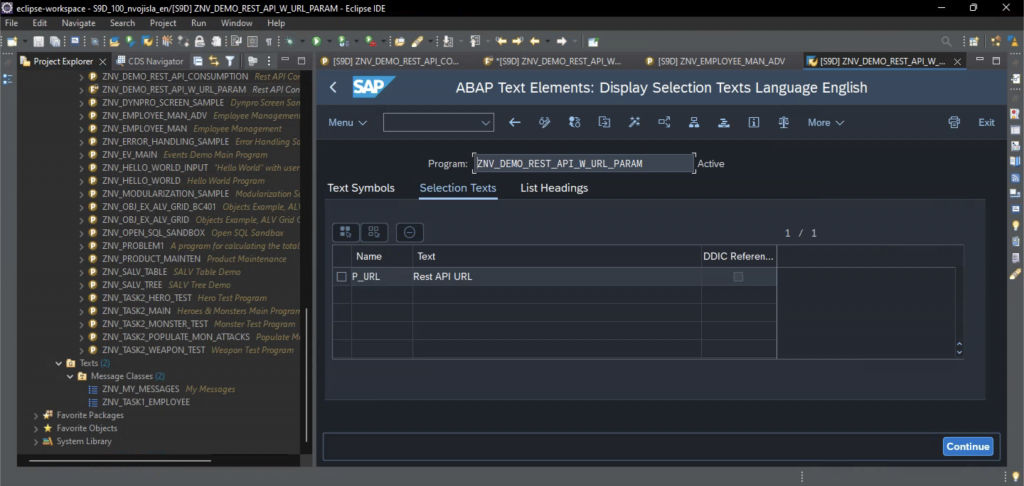
Now, head over to the Selection Texts tab and change the value of P_URL entry to “Rest API URL” (again, it can be anything). Check Screenshot 6 for comparison.

Screenshot 6 – Selection Texts table.

This concludes the initial setup, thus letting us move on to consuming the REST API itself.

Consuming the REST API

The basic idea, which is by no means exclusive to ABAP, comes down to following five steps:

  1. Create an HTTP Client Object
  2. Make a Request
  3. Ask for a Response
  4. Get the Data
  5. Display the Data

Create an HTTP Client Object

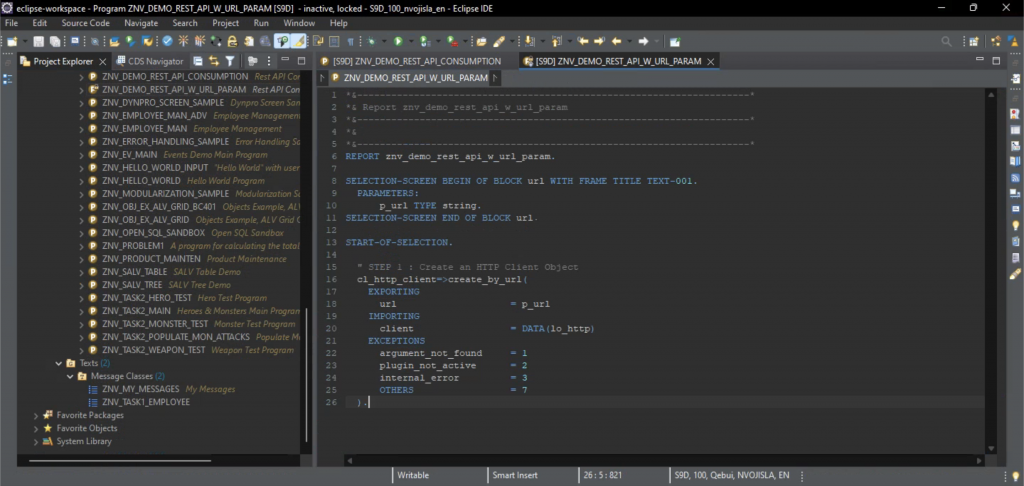
To create an HTTP client object in ABAP one should make use of cl_http_client class and its static method create_by_url (there are other options as well but this one suits us best in this case).

In order to make use of Eclipse’s advanced assistance features, start typing the name of the class and then hit CTRL+Space – an auto-complete list should pop up letting you choose one of the options available based on what you typed down already. Not only does this work with methods as well, but there is an additional feature of using SHIFT+Enter to select the method, which then types out the entire signature, i.e. reveals all the IMPORTING, EXPORTING, EXCEPTIONS and other types of parameters that the method works with (Screenshot 7).

Screenshot 7 – Creating an HTTP Client Object.

The method create_by_url takes in the URL of the REST API we wish to consume (fed in via parameter on the selection screen in this case) and returns the HTTP client object it creates (lo_http in our case). The exceptions stated in the signature can then be evaluated and properly handled, however that is out of the scope of this tutorial.

Make a Request

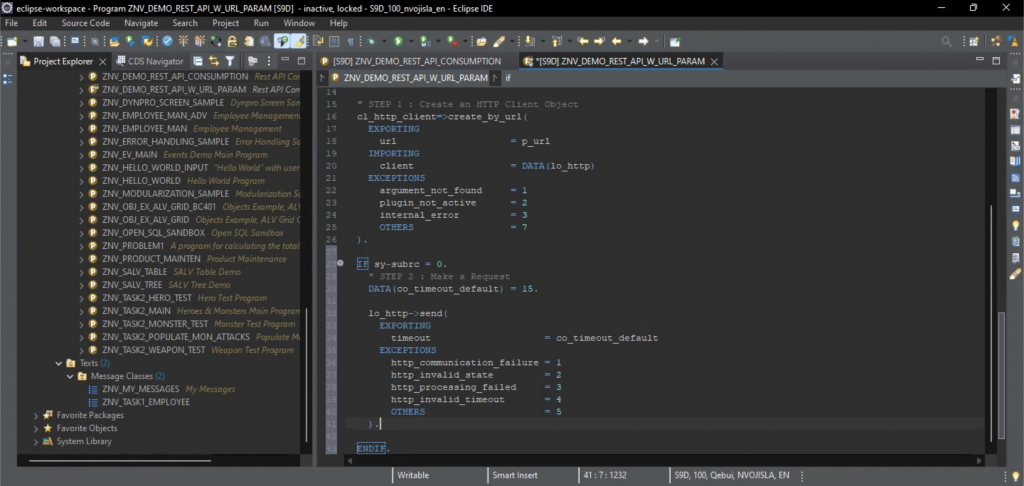
The IF sy-subrc = 0. check ensures that the program is terminated in case any errors occur. 

If, on the other hand, all went well we now have our HTTP client and we are in position to make a request. For this we utilise the send method (again, CTRL+Space and SHIFT+Enter make our lives easier in Eclipse) which only cares about a timeout value, which is here set to 15 but can be any other value that works as well. The result can be seen on Screenshot 8.

Screenshot 8 – Making a Request.

Ask for a Response

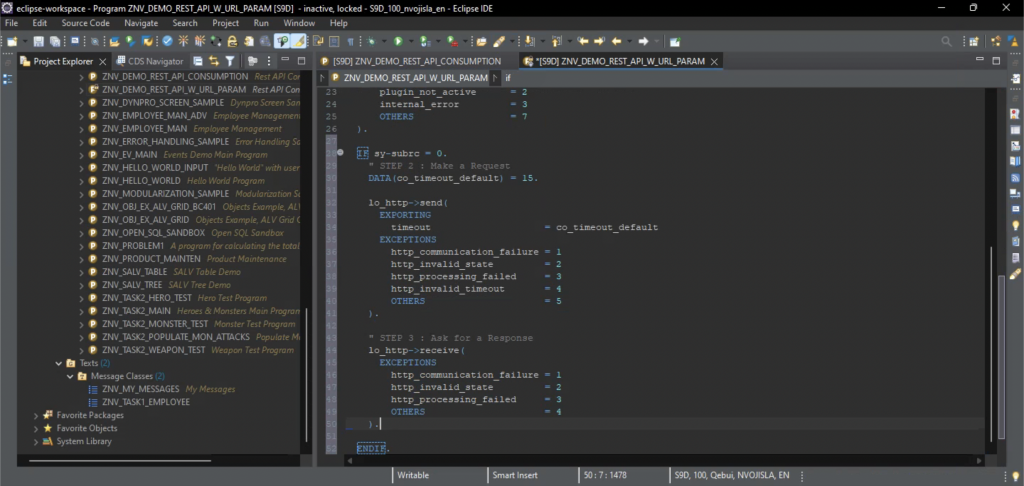
Now that the request has been made, we should ask for a response – this is achieved through method receive which takes no input and returns no output values (Screenshot 9).

Screenshot 9 – Asking for a Response.

Get the Data

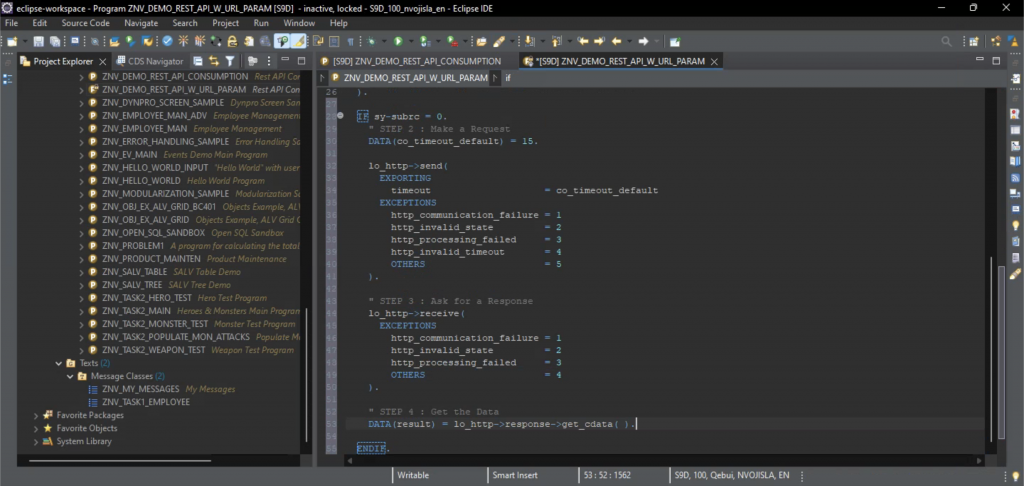
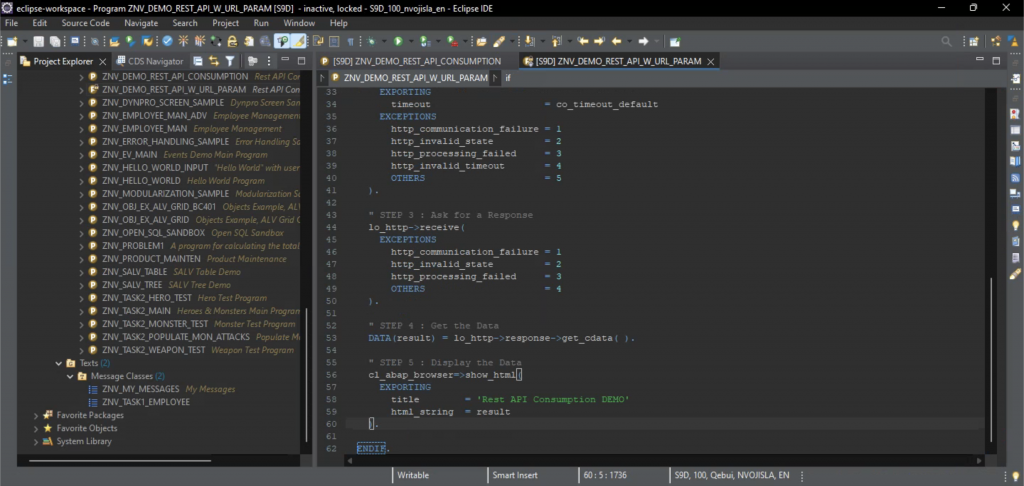
Data is accessed via response, which is a field of the lo_http object. The get_cdata method used is the way of getting the data in character format, i.e. as a string. Since what we will be receiving from the API is a JSON object, this is exactly what we want (Screenshot 10).

Screenshot 10 – Getting the Data.

Display the Data

The data is displayed using the cl_abap_browser class and its method show_html. The method signature once fully displayed in Eclipse is pretty self-explanatory, however of its myriad of input parameters we will only be using two. This gives us perhaps not the fanciest, but certainly quite serviceable display of the JSON objects retrieved (Screenshot 11).

Screenshot 11 – Displaying the Data.

Example of REST APIs Ready for Consumption

Some of the URLs I have used are listed below:

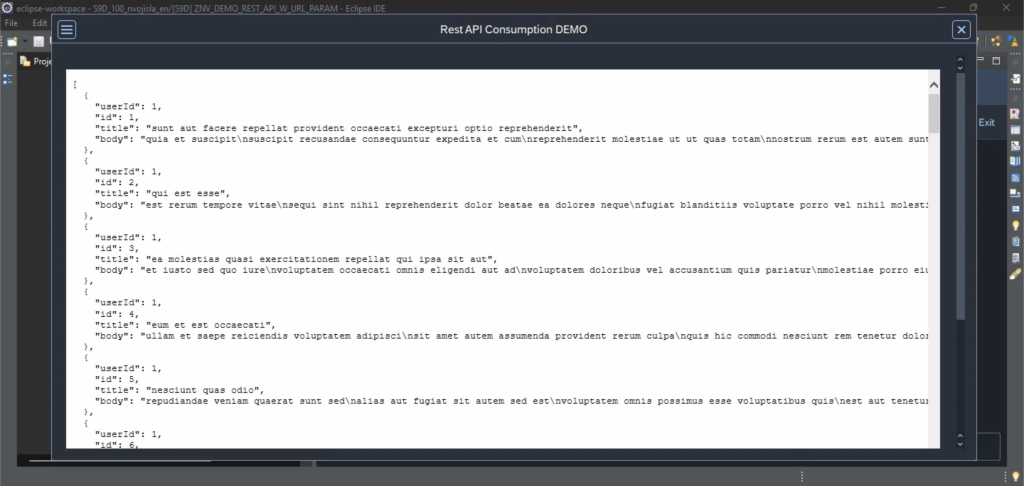
Screenshot 12 – Data Displayed as an HTML Page.

The final result can be seen on Screenshot 12.

References

Gillis, Alexander S. “REST API (RESTful API)”. TechTarget, 11 Oct. 2022, https://www.techtarget.com/searchapparchitecture/definition/RESTful-API

Citation style is MLA (9th ed.).

Using Mylyn 3.23 with Eclipse ADT

Mylyn is a task management system that is integrated in the Eclipse tooling. As a tool it is highly recommended for the purpose of automatic organisation of Eclipse ADT workspace.

Install the plugin via Eclipse Marketplace: input “mylyn” as search term and then choose Mylyn 3.23 (currently latest version, it’s not the first result so scroll down a bit).

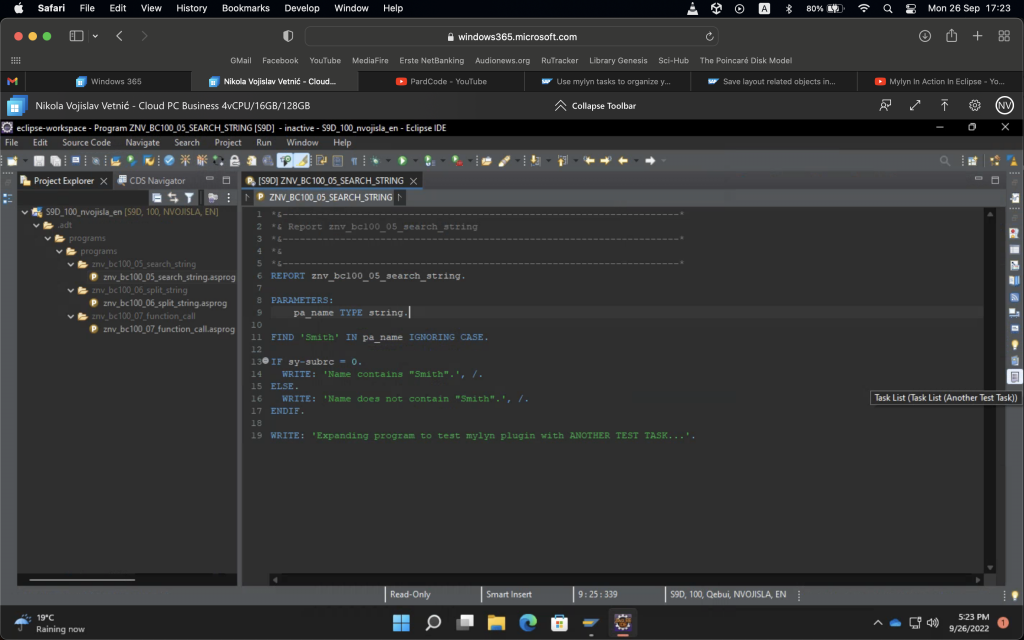
Screenshot 1 – Task List icon.

After restarting Eclipse access the Task List via Window / Show View / Task List, or via shortcut to the right (Screenshot 1).

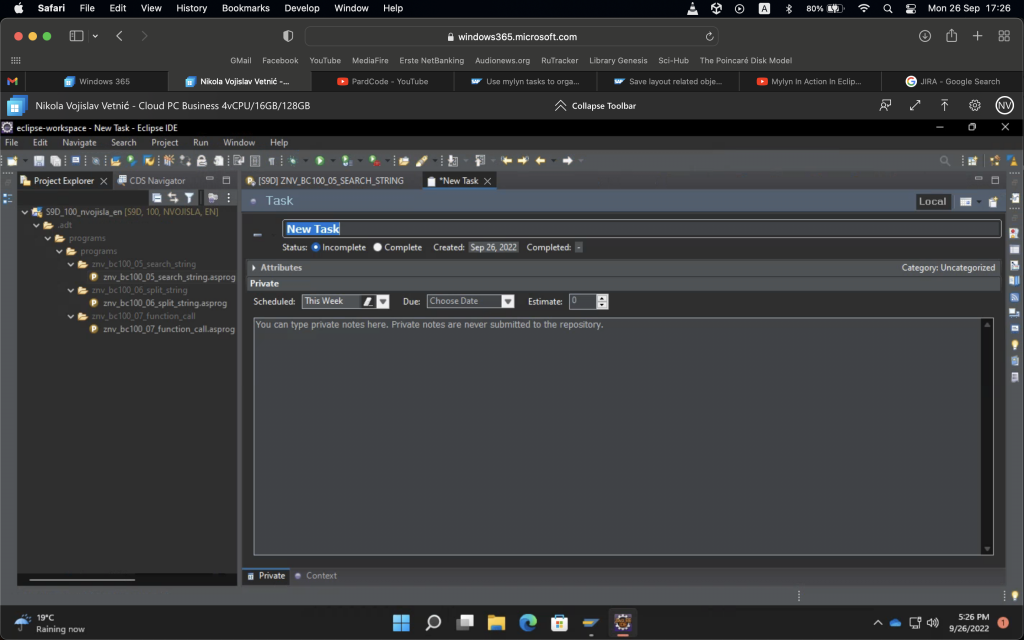
Screenshot 2 – Create a new task.

Create a new task as either a local task or a task connected to one of the supported issue tracking tools such as JIRA – NB, I have only tested the local task functionality so far. Fill out the requested fields and save the task (Screenshot 2).

Screenshot 3 – Activate task.

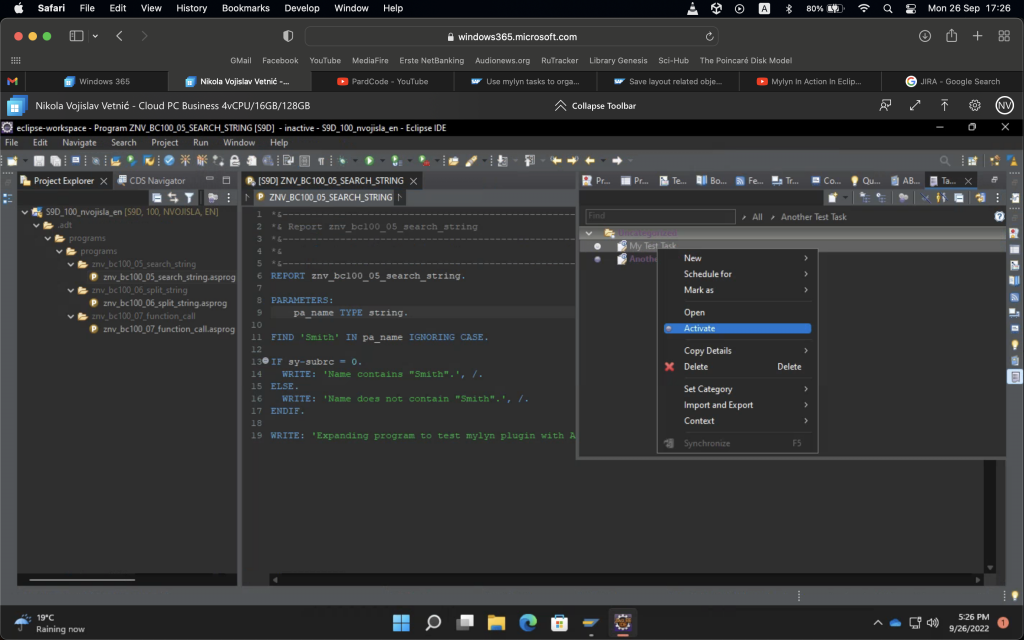
Now, access the Task List again, right click on one of the tasks and select Activate (Screenshot 3). Activating the task for the first time will close the ABAP project in the Project Explorer to the left.

The purpose of Mylyn is automatically monitoring the files the developer accesses during work on a particular task so that once focus switches to that task again all unnecessary data stays hidden. Any files accessed while a task is active will be marked as “important” for the task and will thus be revealed any time the task is accessed.

Using the + sign button next to the project name in Project Explorer will reveal all the project files. Closing and opening the project again will once more reveal only the files Mylyn recognised as important for the active task.